button needs
to be executed any time there is change to a field.
button needs
to be executed any time there is change to a field.
Income Forecast Statement
This procedure is used to generate project specific Income Statements. The Project Income Statement and Forecast screen will display Job-To-Date Revenue and Cost data, as well as Cash Flow data for the selected Job/Sub-Job through the specified Reporting Period. Generated data can be recalculated from user input in the following fields:
Contract Adjustments
Forecast Cost
Unbooked Billings
Accrued Expenses with full details in a popup screen
Deferred Expense with full details in a popup screen
General Reserve
Loss Reserve
Backlog and margin information for current year and 3 future years
Additional Functionality includes:
Printing of statement using eForms. Attachments will print, e-mail or fax with eForms.
Attachments can be made using the attachments feature from Project Collaborator.
All data elements visible on the screen are saved in a table for future reference and reporting.
All data elements visible, including comment, will be available for reporting through COGNOS.
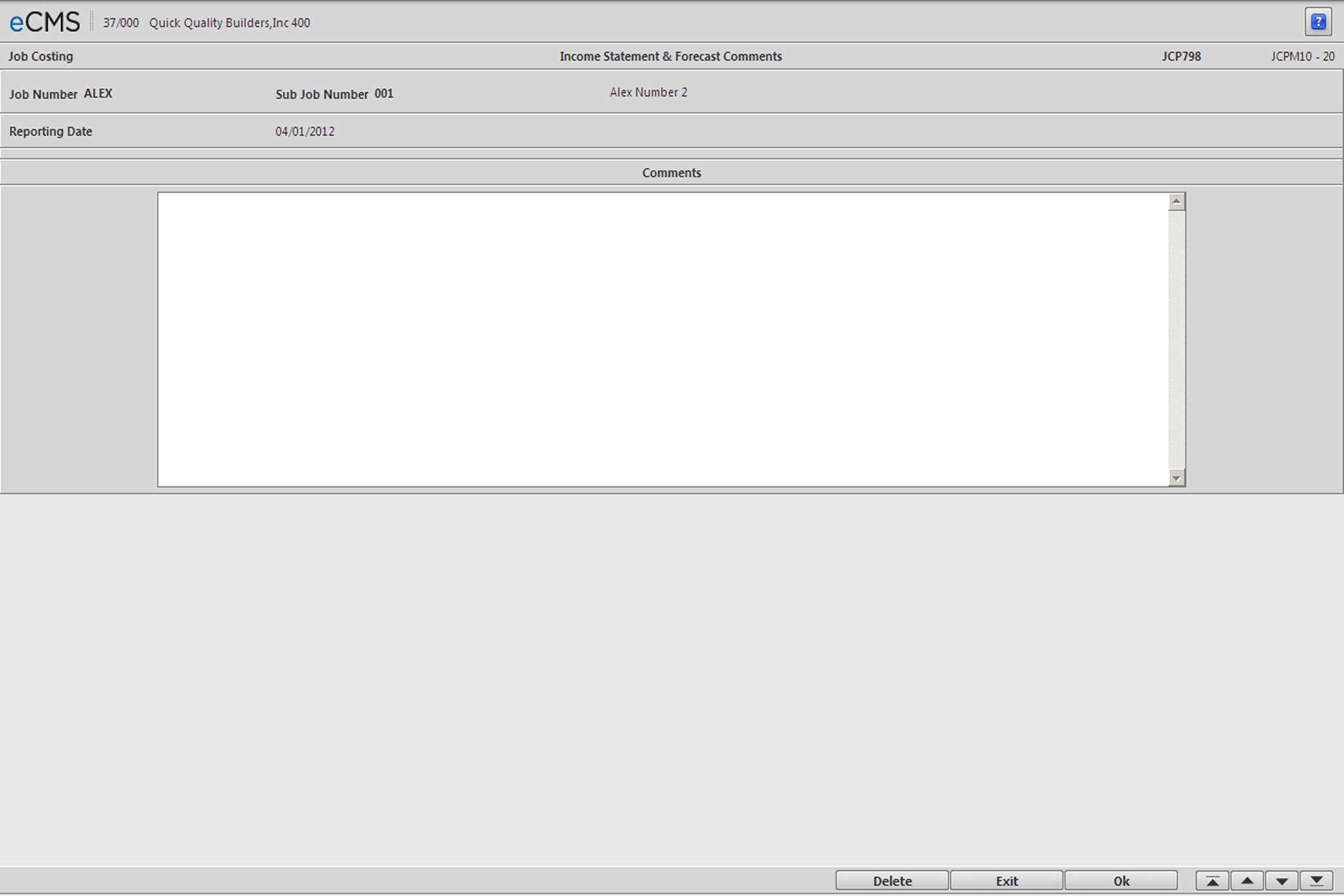
Comments may be entered on a separate screen.
Allow for departmental allocation. The department to which the job is assigned in the Job Description File will always be the default with 100% of the value. Other departments can be entered with various percentages to reflect the idea that more than one department is involved with a project. This will be used to allocate revenues, costs and margin on reports to the various departments.
Fields in finalized records will not accept input, although the prompts on the Accrued and Deferred Expenses will still function.
Automatically post journal entries to record unbooked billings, and deferred and accrued expenses. When a forecast is “un-finalized”, the system will make the reversing journal entry using the reporting date from the forecast.
The button needs
to be executed any time there is change to a field.
Also, if additional entries are being made through the various other applications for the specific reporting period, you can use the recalculate button to bring those costs in. To do so, you must first clear the Forecast Cost field (set it to zero) for the new entries to be included.
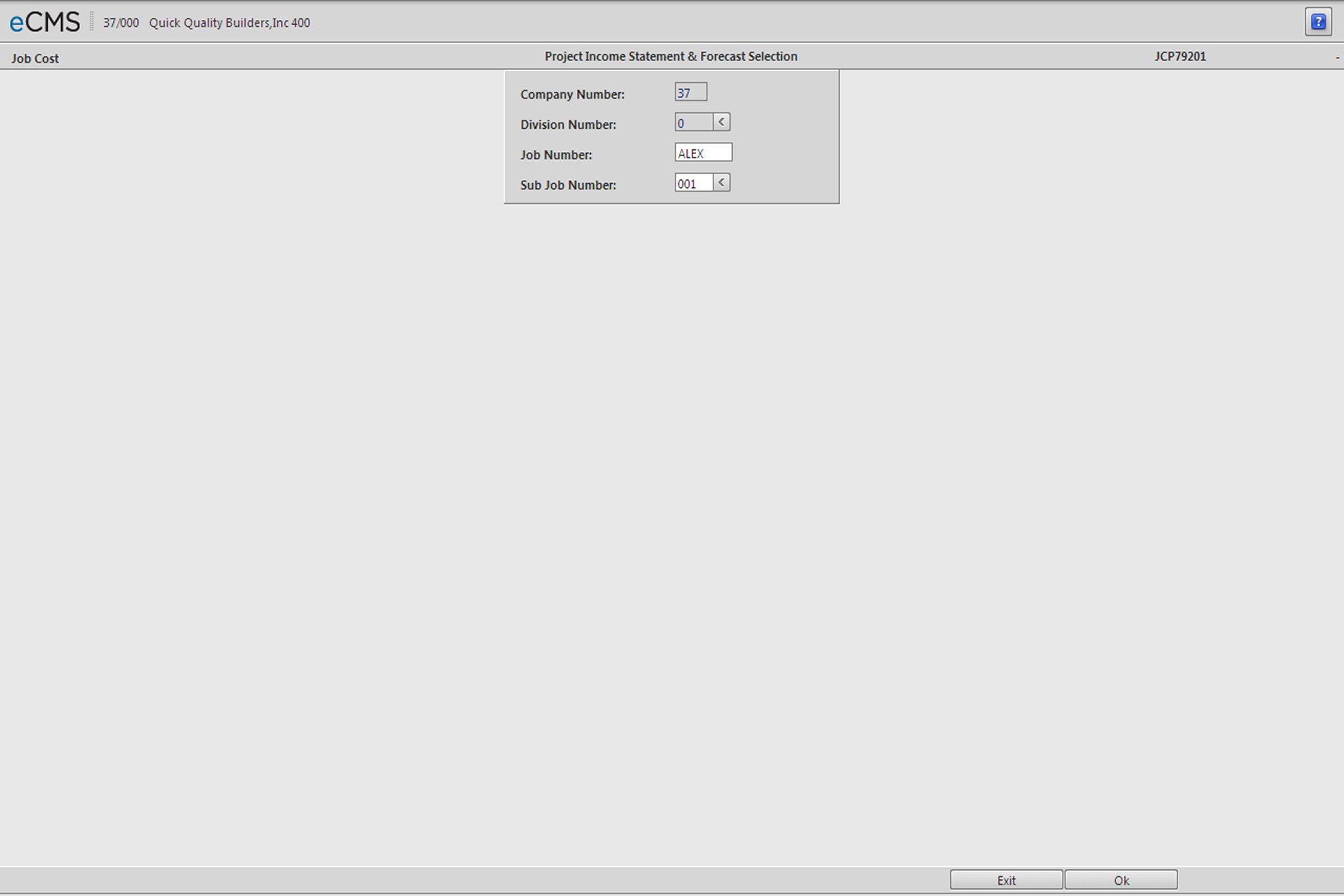
This screen is accessed from the from the Processing menu in Job Costing.
Job/Sub Job
To select from a list of current forecasts, leave these fields blank and click OK. Otherwise, enter the Job/Sub Job for which you want to generate the Project Income Statement.
 |
Click to process these entries. If the Job/Sub Job field is blank, or if there are multiple forecasts for the Job/Sub Job entered, you will access the Forecast Selection screen. Otherwise the Project Income Statement Detail screen will display. |
 |
Click to return to the Main Menu without processing entries. |
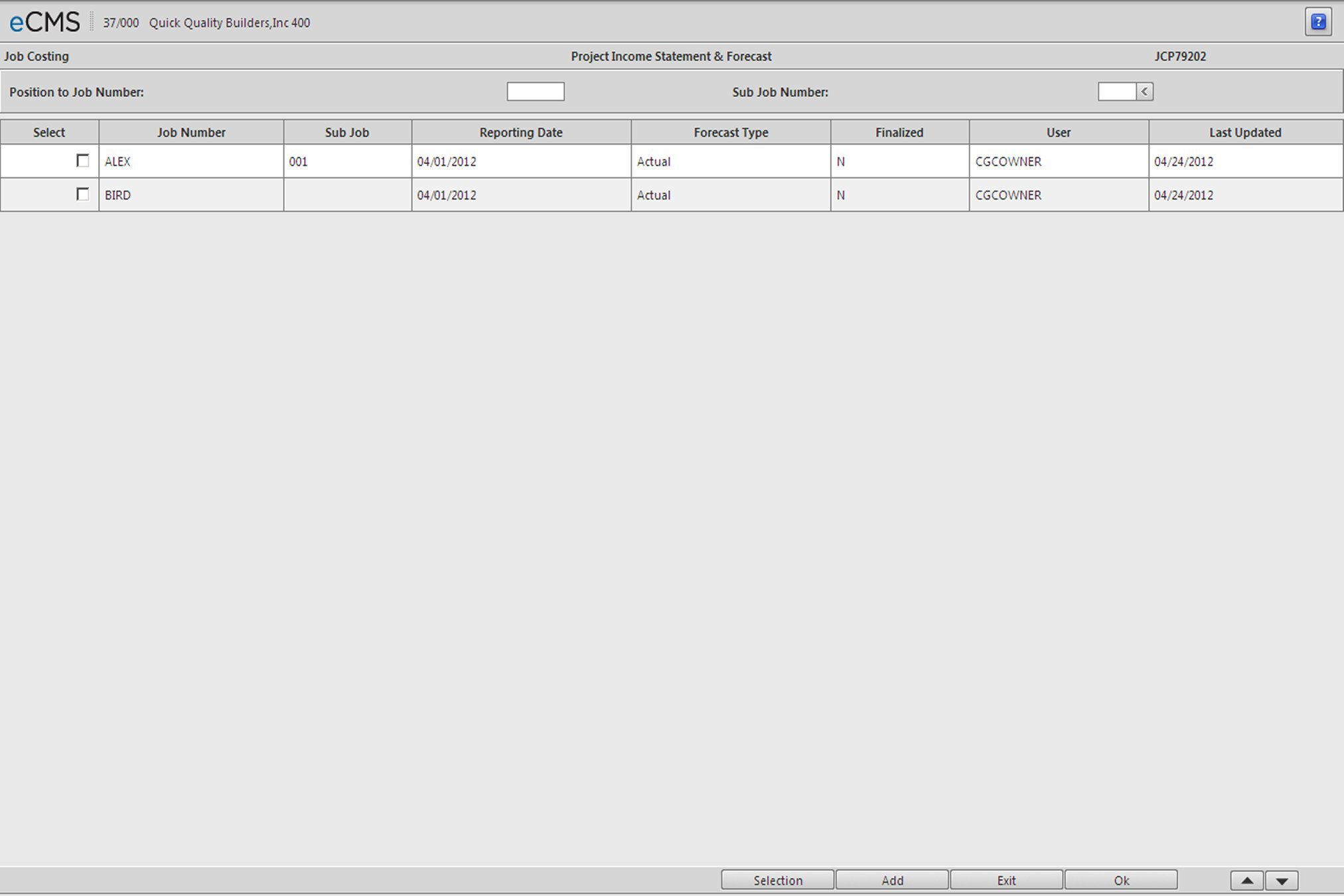
This screen will display if forecasts currently exist for the selected Job/Sub Job. Either access an existing forecast, or click the ADD button to create a new forecast with a new reporting date.
Only one open forecast is allowed per Job/Sub Job. Attempting to create a new forecast for a Job/Sub Job that currently has one open will generate an error message.
|
Click to display the selected Forecast on the Project Income Statement Detail screen. |
|
Click to return to the Main Menu without processing entries. |
 |
Click to create a new Forecast with a new Reporting Date. |
 |
Click to return to the Job/Sub Job Selection screen. |
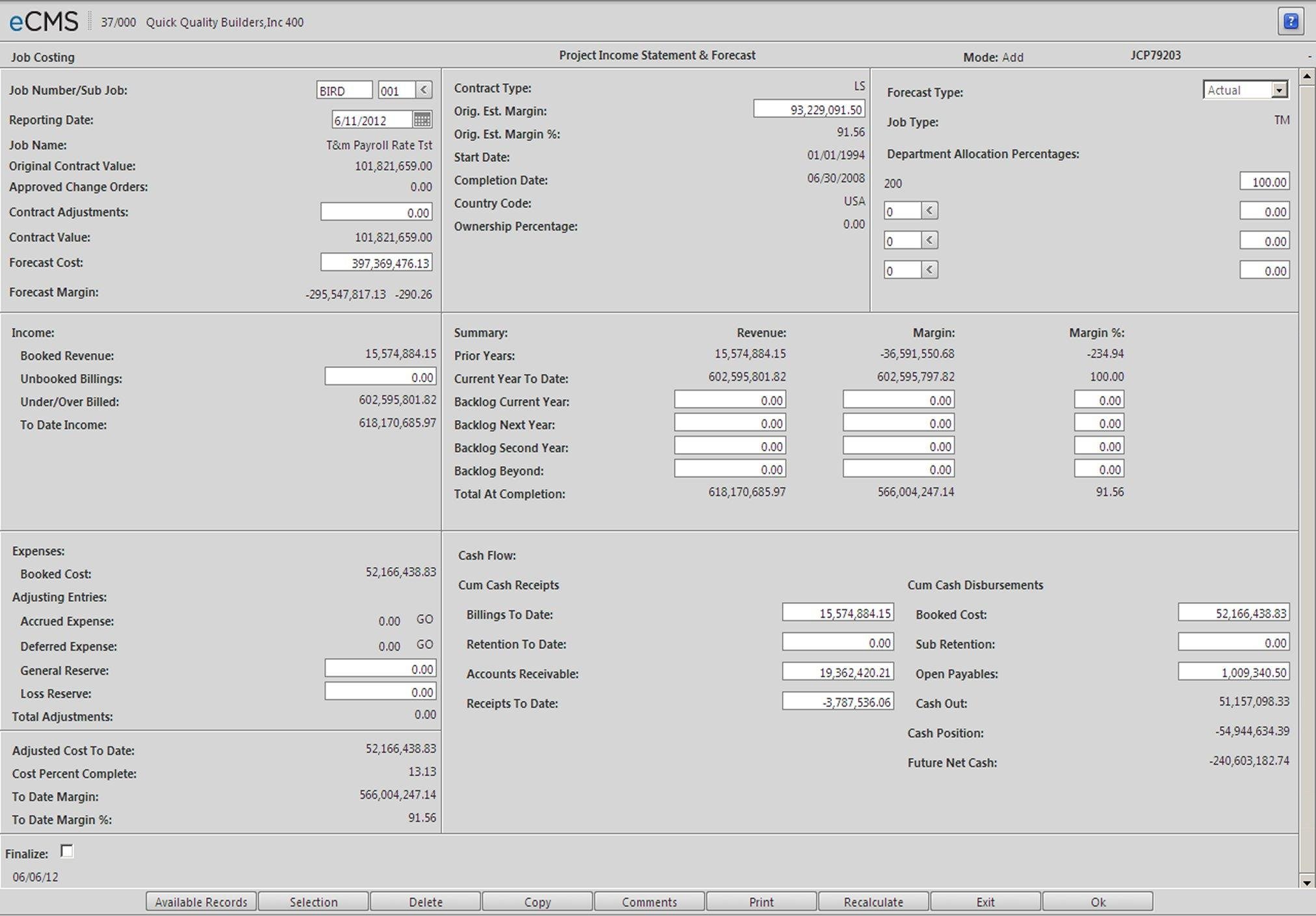
Project Income Statement Detail screen
Job/Sub Job
Accept the Job/Sub Job entered on the Selection screen, or click the Sub Job prompt to make new selections.
Reporting Date
This entry will define the report’s “thru” date and must be in mm/dd/yyyy format.
Click OK to generate the Project Income Statement for the specified Job/Sub Job and Reporting Date. During subsequent data entry, click the RECALCULATE button to view results.
Contract Value/Contract Adjustments
Original Contract Value + Approved Change Orders + Contract Adjustments
Forecast Cost
This is the Estimated Cost at Completion from the Summary Job Analysis.
Forecast Margin
Contract Value - Forecast Cost
Contract Type
Pulled from the Billing Type entered in the Job Description file.
Original Estimate Margin
Original Revenue Budget - Original Cost Budget
Original Estimate Margin Percent
Original Estimate Margin / Original Revenue Budget
Start Date/Completion Date
Pulled from the Job Description file.
Country Code/Ownership Percentage
Pulled from the Company Name Defaults.
Forecast Type
Click the prompt and select a Forecast Type from the list.
Actual |
Real Job currently in progress. |
Anticipated |
Jobs to be awarded in the future. |
External |
Jobs not being tracked in eCMS (Joint Ventures, etc.) |
Growth |
Expected increases in real jobs. |
Other |
|
Job Type
Pulled from the Job Description file.
Department Allocation Percentages
Row 1 - The read-only value and the entry in it’s adjacent field are pulled from the Job Description file.
Rows 2 & 3 - Used to split the allocation among 2 additional Departments, enter the Department Number in the first field and the allocation percentage in it’s adjacent field. The total of all allocation percentage entries cannot exceed 100.
Income
Booked Revenue
Pulled from the Job Cost Detail file for the period defined by the Reporting Date.
Unbooked Billings
User entry
Under/Over Billed
Contract Value x Cost Percent Complete - Booked Revenue
This value may be a negative number.
The Cost Percent Complete does not include the amount entered in the Loss Reserve field.
To Date Income
Booked Revenue + Over/Under Billed
Expenses
Booked Cost
Pulled from the Job Cost Detail file for the period defined by the Reporting Date.
Accrued Expense
Sum of all accrued expenses entered on the "Accrued Expense/Deferred Expense Detail screen" (see page 4-9). This screen is accessed by clicking the adjacent GO icon.
Deferred Expense
Sum of all deferred expenses entered on the "Accrued Expense/Deferred Expense Detail screen" (see page 4-9). This screen is accessed by clicking the adjacent GO icon.
General Reserve
User entry
Loss Reserve
User entry. This value is unique in that it will not be used when calculating the Cost Percent Complete. This results in recognizing immediately the full loss on jobs projected to lose money.
Total Adjustments
Accrued Expense + Deferred Expense + General Reserve + Loss Reserve
Adjusted Cost to Date
Booked Cost + Total Adjustments
Cost Percent Complete
(Adjusted Cost to Date - Loss Reserve)/ Forecast Cost
To Date Margin
To Date Income - Adjusted Cost to Date
To Date Margin %
To Date Margin / To Date Income
Summary
Prior Years
Revenue
“To Date Income” from the last projection in the prior fiscal year.
Margin
“To Date Margin” from the last projection in the prior fiscal year.
Margin %
Margin / Revenue
Current Year to Date
Revenue
To Date Income - Prior Year Income
Margin
To Date Margin - Prior Years Margin
Margin %
Current Year To Date Margin / Current Year To Date Revenue
Backlog Current Year
Revenue
In add mode, the value from the most recent record. Can be overridden.
Margin
In add mode, the value from the most recent record. Can be overridden. If this value is left blank, multiply the Margin % by Revenue and populate. If both are populated use the Margin to recalculate the Margin %.
Margin %
In add mode, bring forward the same value from the most recent record. Can be overridden. If this value is left blank, divide the Margin by Revenue. If both are populated use the Margin to recalculate this value.
Backlog Next Year
Revenue
In add mode, the value from the most recent record. Can be overridden.
Margin
In add mode, the value from the most recent record. Can be overridden. If this value is left blank, multiply the Margin % by Revenue. If both are populated use the Margin to recalculate the Margin %.
Margin %
In add mode, the value from the most recent record. Can be overridden. If this value is left blank, divide the Margin by Revenue. If both are populated use the Margin to recalculate this value.
Backlog Second Year
Revenue
In add mode, the value from the most recent record. Can be overridden.
Margin
In add mode, the value from the most recent record. Can be overridden. If this value is left blank, multiply the Margin % by Revenue. If both are populated use the Margin to recalculate the Margin %.
Margin %
In add mode, the value from the most recent record. Can be overridden. If this value is left blank, divide the Margin by Revenue. If both are populated use the Margin to recalculate this value.
Backlog Beyond
Revenue
In add mode, the value from the most recent record. Can be overridden.
Margin
In add mode, the value from the most recent record. Can be overridden. If this value is left blank, multiply the Margin % by Revenue. If both are populated use the Margin to recalculate the Margin %.
Margin %
In add mode, the value from the most recent record. Can be overridden. If this value is left blank, divide the Margin by Revenue. If both are populated use the Margin to recalculate this value.
Total at Completion
Revenue + Margin
Margin % = Margin / Revenue
If the Forecast Type is set to Actual or Other, then
Revenue must equal Contract Value
and
Margin must equal Forecast Margin
Cash Flow
Cumulative Cash Receipts
Billings To Date
Calculated from Job Cost Cash Position Report. May be overridden if the Forecast Type is not set to Actual or Other.
Retention To Date
Calculated from Job Cost Cash Position Report. May be overridden if the Forecast Type is not set to Actual or Other.
Accounts Receivable
Calculated from Job Cost Cash Position Report. May be overridden if the Forecast Type is not set to Actual or Other.
Receipts To Date
Calculated from the Job Cost Cash Position Report - Cash Received. May be overridden if the Forecast Type is not set to Actual or Other.
Cumulative Cash Disbursements
Booked Cost
Calculated from Job Cost Cash Position Report. May be overridden if the Forecast Type is not set to Actual or Other.
Sub Retention
Calculated from Job Cost Cash Position Report. May be overridden if the Forecast Type is not set to Actual or Other.
Open Payables
Calculated from Job Cost Cash Position Report. May be overridden if the Forecast Type is not set to Actual or Other.
Cash Out
Booked Cost + Sub Retention + Open Payables
Cash Position
Cash Receipts to Date - Cash Out
Future Net Cash
Forecast Margin - Cash Position
Finalized
If this option is selected:
The system stores the Forecast with a status of 'I' to indicate it is only to be viewed, not updated.
A journal entry is created and posted to the batch journal entry files in G/L.. This entry is based on the information found on the screens for Accrued Expenses and Deferred Expenses
Another journal entry will be created to book the unbooked billings to the default income code on the Job Description file and debit the Accrued A/R field from A/R defaults.
If this option is cleared:
The system stores the Forecast with a status of “A” which will make all entry fields accessible.
Clicking OK will re-display this forecast instead of returning to the Available Records screen.
Only one open forecast is allowed per Job/Sub Job. Attempting to “unfinalize” (open) a forecast for a Job/Sub Job that currently has an open forecast will generate the error message, “Unapproved Records Exist - Cannot Process Until Approved”.
|
Click to process entries and, for finalized forecasts, return to the Available Records screen. If the forecast is not finalized, the current forecast is saved as “Unfinalized” and re-displayed. |
|
Click to return to the Main Menu without processing entries. |
|
Click to rerun calculations every time a change is made to a field. Valid only for forecasts that have not been finalized. Also, you can pull in entries that are being made through various other applications by setting the Forecast Cost field to zero and clicking this button. |
 |
Click to print this forecast using eForms. |
 |
Click to access a Comments screen. |
 |
Click to copy these entries to a new statement with a different date. All fields are copied except Accrued and Deferred expenses. This is for finalized statements only. |
 |
Click to delete this forecast. |
|
Click to return to the Job/Sub Job Selection screen without processing changes. |
 |
Click to return to the Project Income Statement Detail screen without processing changes. |
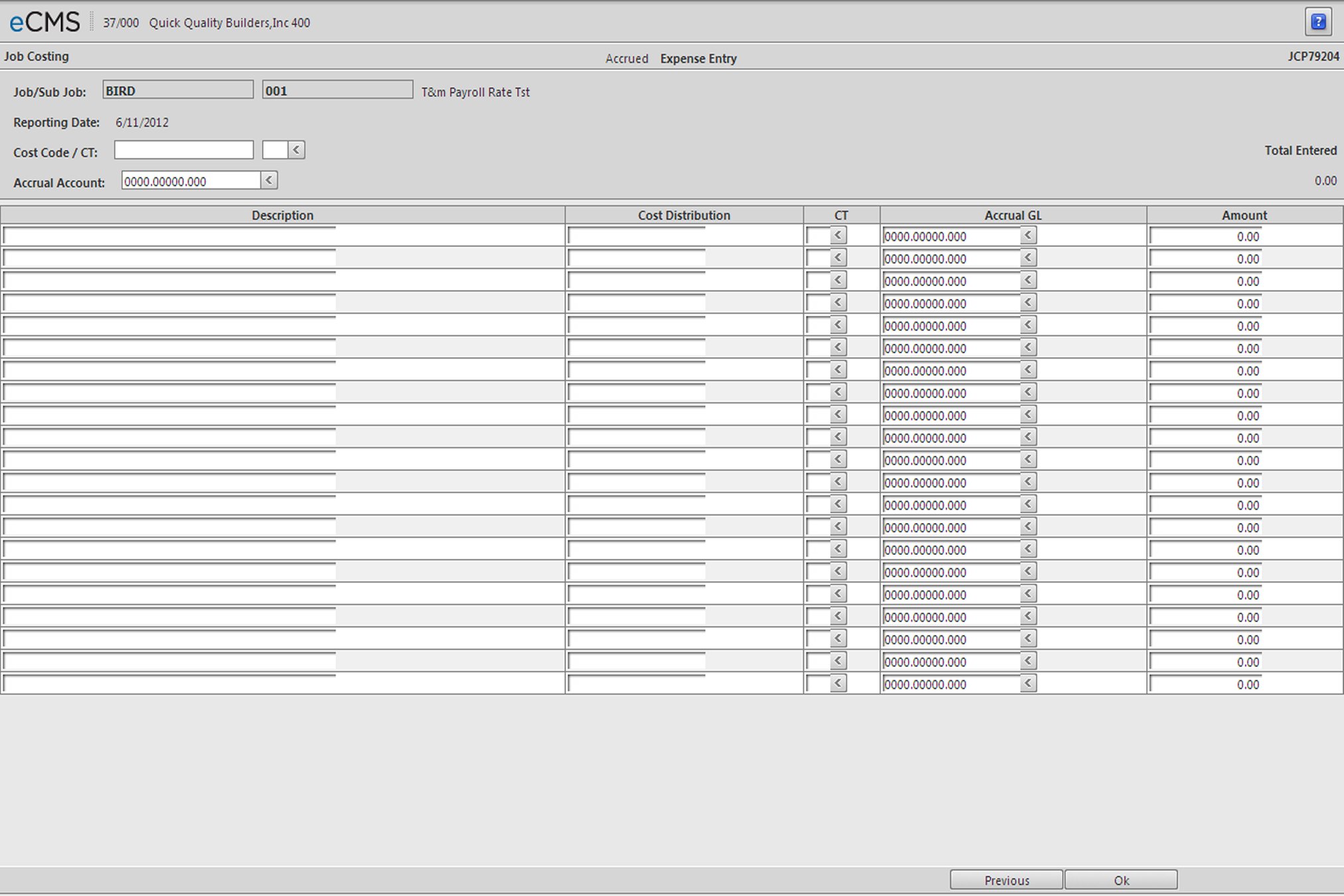
Accrued Expense/Deferred Expense Entry screen
These screens are identical except for the screen label. They are accessed by clicking the GO icon associated with the Accrued Expense or Deferred Expense field.
Accrual Account
This account number will populate from the A/R Accrual entry on the first page of Accounts Receivable defaults. It can be overridden.
Cost Distribution
Entry is not required unless different from the header entry.
Make the accrued expense entries and click OK. The total of these entries will populate the Accrued Expense field.
Make the deferred expense entries and click OK. The total of these entries will populate the Deferred Expense field.
Accrual GL
This entry will populate from the default Accrual Account in the header.
Amount
Enter the Accrued/Deferred Expense amount.
|
Click to process entries. |
 |
Click to return to the Project Income Statement Detail screen. Changes will be lost if the OK button has not been clicked. |
This screen is accessed by clicking the COMMENTS button on the Project Income Statement Detail screen.
|
Click to save entries. |
|
Click to return to the Project Income Statement Detail screen. Changes will be lost if the OK button has not been clicked. |
|
Click to delete comments. |