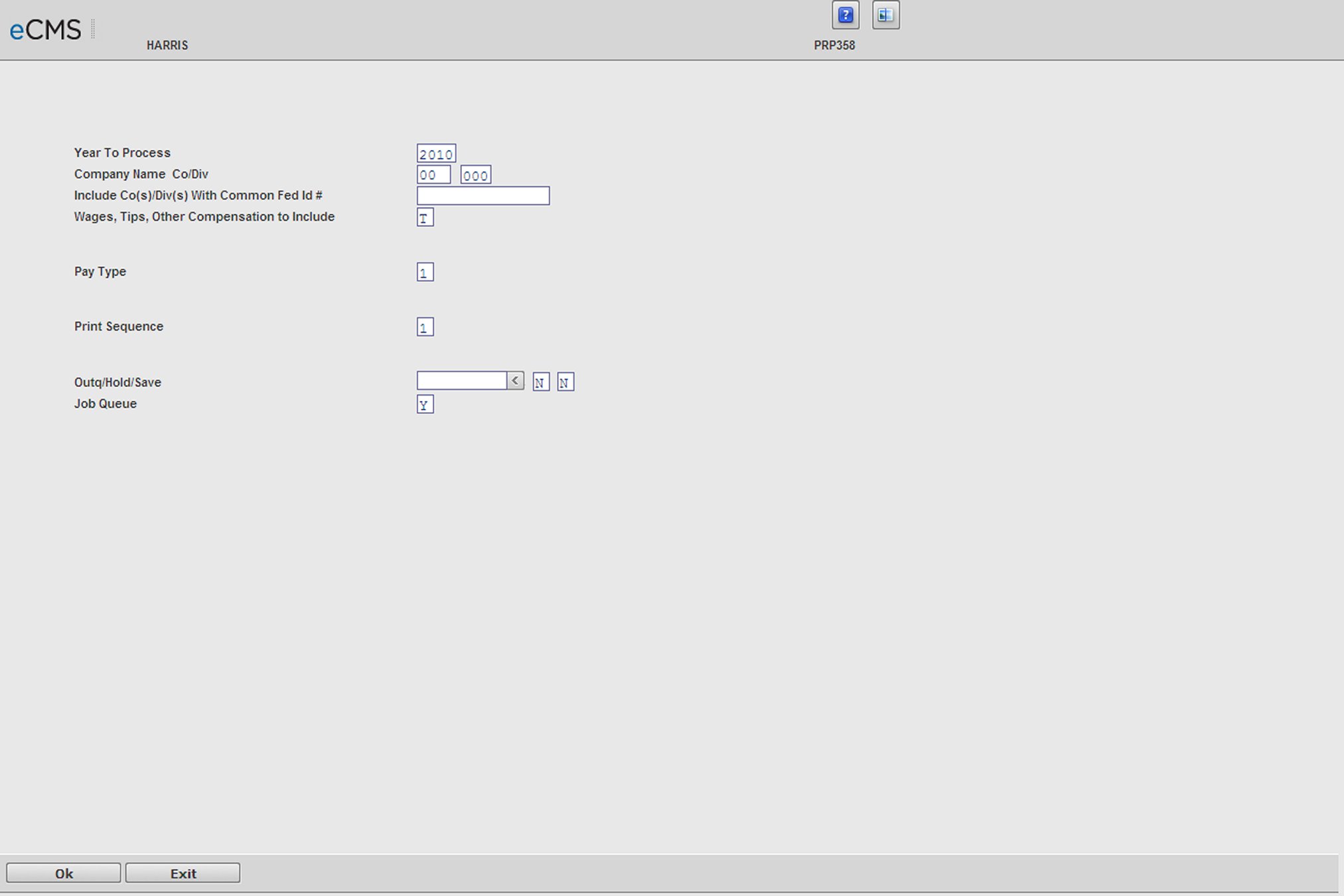
Use this option to print the W2 Register. This register serves as a preliminary copy of the actual W2 forms. Run this option as many times as is necessary to assure accurate W2 forms.
If you set Current Year Defaults to Y, then you can run the W2 Register before the Prepare Year End File For W2s option. If you don’t, then you must run the Prepare Year End File For W2s option before running the W2 Register.
The following message displays if you have not run that option, or if you have run the option previously and removed the files from your system:
PRPW2R
THE YEAR END PAYROLL FILES MUST BE RESTORED TO THE SYSTEM
OBTAIN THE DISKETTES BACKED UP FROM STEP 1 OF THE MENU
INSERT FIRST DISKETTE INTO DISKETTE READER
Restore the files, or execute the Prepare Year-End File option, if you have not done so, before executing this option.
Level Security
When you click OK, the Level Security popup window will display listing the security levels to which you have access. Select the levels you wish to include on the W2 Register and click OK again.
Company/Division Security
If you intend to enter a Federal ID in the Process All Companies With Fed ID# prompt, use the security access code associated with one of the company/divisions to be processed. Do not use security access for All Companies/All Divisions.
Company Control
Check the results on the register carefully. The options that you select determine the information that prints on the register.
Note: Some fields (Include Co/Div with Common Fed Id Number for instance) - will NOT display on screen if you clear single Company/Division.
Year To Process
Enter the payroll year to process. The system default is the previous system year.
Process All Companies With Federal ID Number
To process multiple companies, the companies must have a common federal identification number and employees must be setup in all companies. To process a single register for multiple companies, enter their common federal identification number. Please note that no employee numbers will print on the W2 register if you use this option.
Wages, Tips, Other Compensation to Include
A |
All Earnings, including non-taxable adjustments and non-taxable travel pay (subsistence) will be included in the Wages field of the W2. |
T |
Only Taxable Earnings will be included in the Wages field of the W2. |
The decision to include all earnings or taxable earnings only should be based upon the type of payments made to employees through the payroll system, your understanding of federal requirements, or the advice of your certified public accounting firm.
Pay Type
If you selected this option using Executive Payroll Security, you may select the type of payroll records to process. Select one of the following:
1 |
Executive |
2 |
Standard |
3 |
All |
Job Queue
Y |
Process this job interactively in the job queue. |
N |
Process this job before other jobs in the job queue |
Use Current Year Defaults
Y |
Use the current year defaults as specified in your company's default set up. |
Device ID
Enter the name of the diskette or tape drive.
Sequence
1 |
Name |
2 |
Social Security Number |
3 |
Employee Number |
 |
Click to process these entries and display the Level Security popup window, which lists the security levels to which you have access. Select the levels you wish to include on the W2 Register and click OK again to print the W2 Register |
 |
Click to return to the Main Menu without saving changes. |
W2 Register
Column Descriptions
All the data used for this report is from the Employee Qtd/Ytd File.
Gross Wages
All gross wages or taxable wage depending on selection as recorded in the employee earnings records.
W2 Wages
Gross or taxable gross less exempt with T depending on selection.
Taxable Wages
All Gross Wages, less Exempt with T.
Taxes
Federal withholding taxes.
Taxable FICA
Taxable gross, less FICA (exempt limit from system defaults).
Taxable Medicare
Taxable gross, less FICA (exempt limit from system defaults).
FICA Taxes
Total combined FICA/Medicare withheld. Totals for FICA and Medicare are printed separately on the report.
Note: If you use the Process All Companies With Fed ID# prompt, and are unable to determine where the wage information is coming from, run the Cross Company Earnings History Report from the Payroll History Menu.
