The Change Order Master is used to record changes in budget or contract amounts made by customers or from internal budget revisions. Change orders can affect job income and/or contract billing records, or cost and/or subcontract records, and quantity and hour budgets.
Use this menu option to create or maintain Change Order Master file records. Entries in this file are accessed by the Job Cost, Accounts Payable, and Accounts Receivable applications.
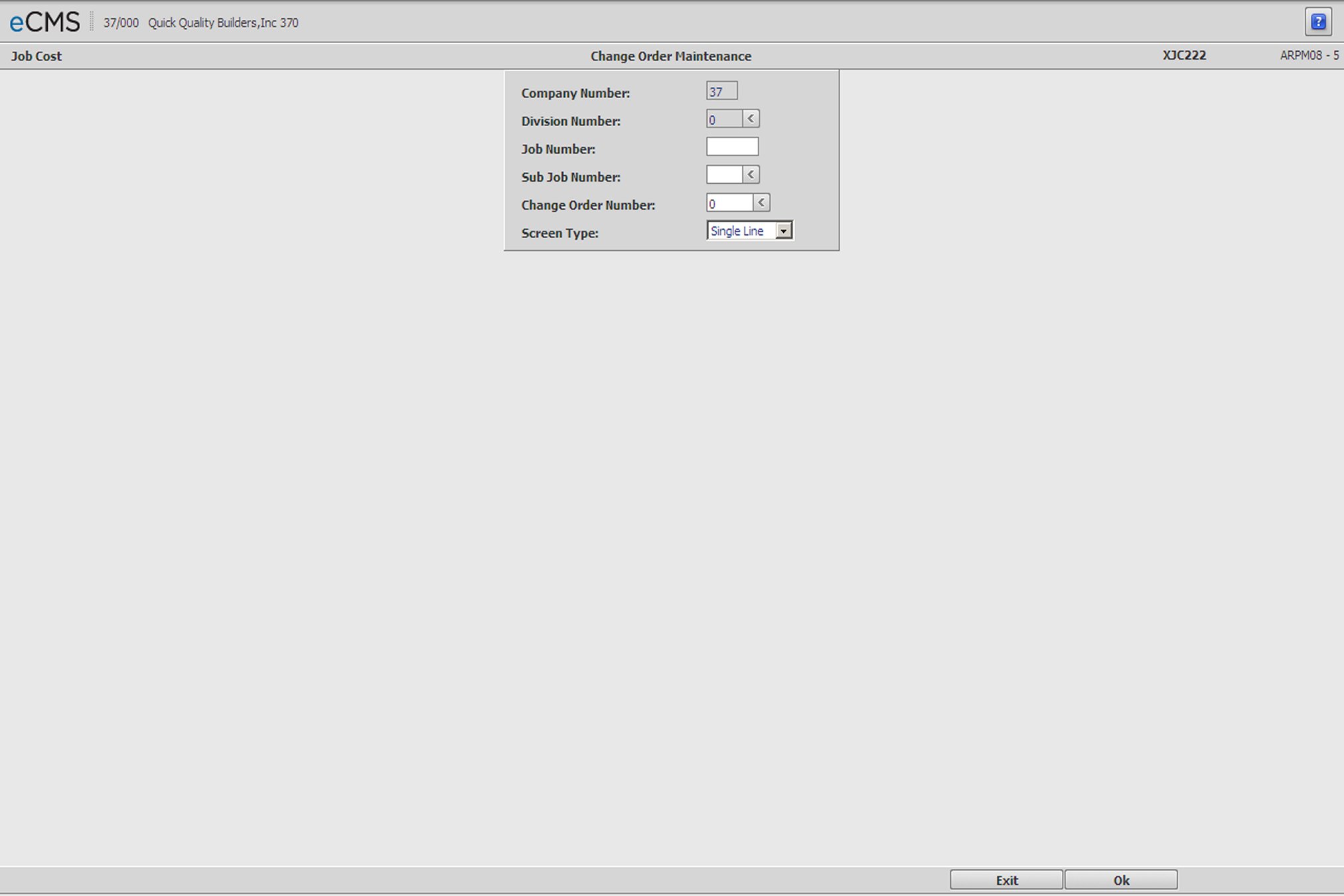
Company/Division Number
Accept the current Company/Division, or click the Division Number prompt to make new selections from a list.
Job/Sub Job
Enter the Job/Sub Job number that will be affected by this Change Order, or click the prompt to select from a list.
Change Order Number
Enter the Change Order Number to be created or modified. If no entry is made, the system will automatically assign the lowest number not currently in use by the Job/Sub Job.
Screen Type
The Screen Type determines the type of entry screen that is displayed. Click the prompt and select one of the following.
 |
Click to process these entries and display the Change Order Header Entry screen. |
 |
Click to return to the Main Menu without saving changes. |
Change Order Header Entry screen
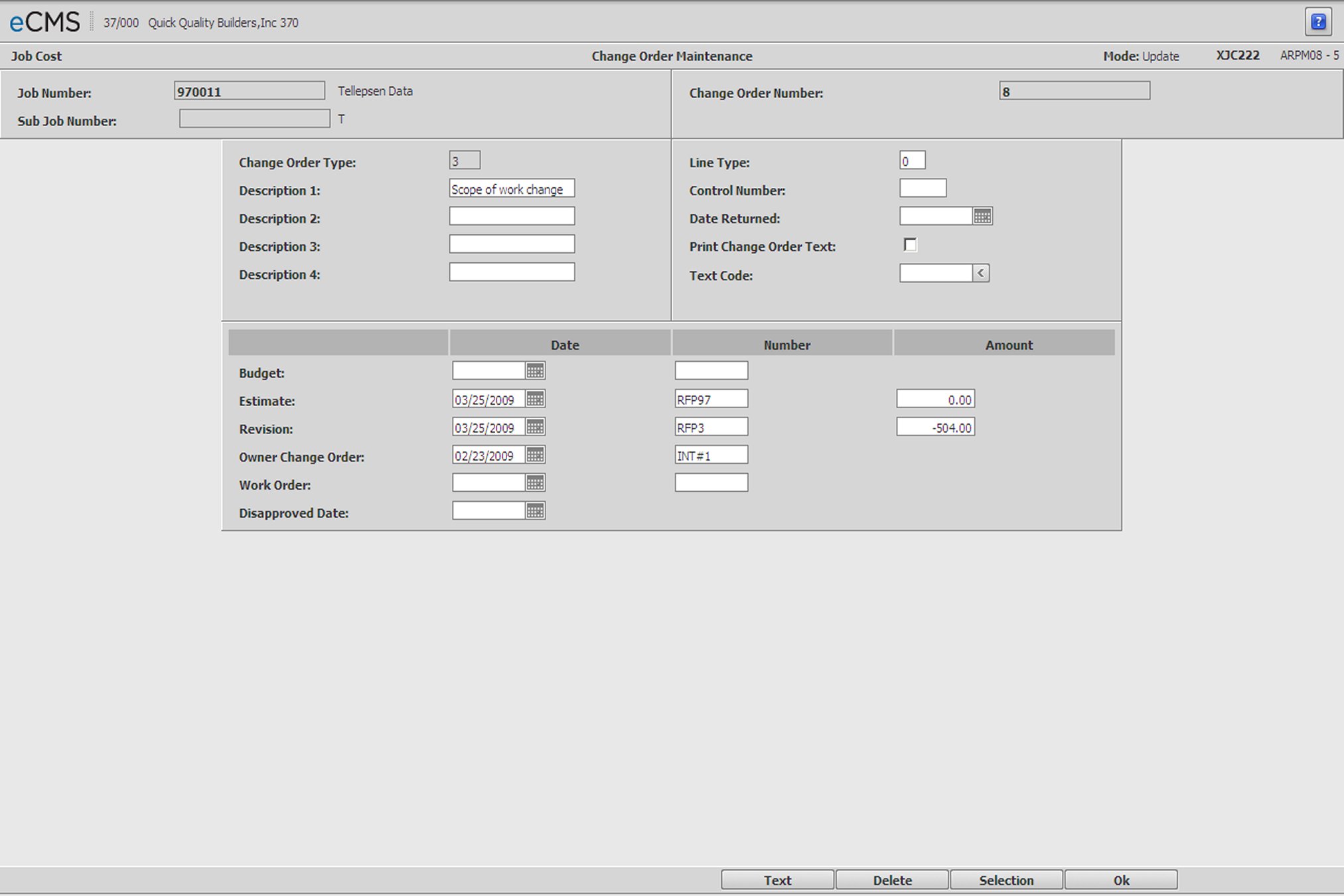
Change Order Type
Change Order Types are used to determine which files are updated and which fields are display when you enter Change Orders. Change Order Types are set up in the File Maintenance section of Job Costing.
Job Cost | Maintenance | Change Order Type Maintenance
If a Change Order Number was entered on the selection screen, this field will default to the Change Order Type associated with that number. Otherwise, enter a Change Order number or click the prompt to select from a list.
Description 1 through 4
Enter a Description of the item, or items, covered by this Change Order. If the Job Cost default values are set to Copy Pay Item Description to Change Order records, the pay item description will automatically be pulled into the first description line of the change order. Change the description if necessary.
Line Type
Enter a Line Type number to print this record in the profit and overhead (below direct cost) section of the Change Order Report. Change Order records with Line Type numbers are grouped after the total of direct costs items (non-line item records).
Control Number
Enter a Document Control Number to assign to this Change Order. Use this field to link paper documents to computer records.
Date Returned
Enter the date the Change Order is returned. Entry of a date in this field will delete any text previously entered for the Change Order. The Change Order Returned Date will print on the Change Order File Listing.
Print Change Order Text
Change Order Text can be developed using the TEXT button, or assigned by Text Codes set up in Job Costing.
Select this option to print the Change Order Text on the Change Order.
Clear this option to omit the Change Order Text when printing the Change Order.
Text Code
Enter a valid Text Code. These codes are set up in Job Costing.
Job Cost | Maintenance | Change Order Default Text
Create Contract Items
If the Accounts Receivable default, Create the Contract Item Number, is set to Y, then setting this option to Y, after the change order has been approved, will automatically create Accounts Receivable contract items using the Customer and Contract numbers from the Job Description file. The Item Numbers will be incremented based on the value entered in the Accounts Receivable default, Create the Contract Item Number - Increment Item Number By.
Budget Date/Number
Enter a Budget Date and Number, if applicable. This field will be used when Cost Distributions are added at the detail level.
Estimate Date/Number/Amount
Enter the Date, Number, and Amount of the Estimate to record pending change orders. The Amount entry will be updated from the detail records.
Revision Date/Number/Amount
Enter the Date, Number, and Amount of the Revision to record approved change orders. The Amount entry will be updated from the detail records.
Note: A warning will display when a Subcontract Change Order is entered that will result in making the contract amount equal to or less than the amount billed to date. The entry will still be accepted by the system if OK is clicked after the warning is 'displayed. after the warning message is displayed.
Owner C/O Date/Number
Enter the Customer Number and the date the Customer approved this change order. The Change Order Number field is a right justified, alpha field.
Work Order Date/Number
If a Work Order was issued to the subcontractor for this Change Order, enter the Work Order Number and the Date it was issued.
Disapproved Date
If the change was not approved by the owner, enter the date it was rejected. This retains the Change Order information for future review. Review the update option on the Job Cost Change Order menu to update all distributions of a change order with the disapproved date using one entry.
|
Click to process these entries and display one of the following screens:
Alternatively, you may receive the following warning: INVALID JOB COST DISTRIBUTION - PRESS ENTER TO ADD This message only displays if you have selected the Job Cost default option to automatically add 0 budget job and labor cost records if they are not in the file. Click OK to add the new cost distribution with a 0 budget amount. Based on the Job Cost defaults, you can have the system automatically fill a segment of the cost distribution with the change order number to create new cost distributions. |
 |
Click to return to the Change Order Selection screen without saving changes. |
 |
This option displays after information is entered and saved. Click to delete active record. |
 |
Click to return to the Change Order Text Entry screen without saving changes. |
Change Order Single Line Detail screen
Note: If you have selected a Multiple Line screen, this screen will still display before you advance to the multiple line entry screen.
This screen displays when Single Line was selected for the Screen Type on the Change Order Selection screen.
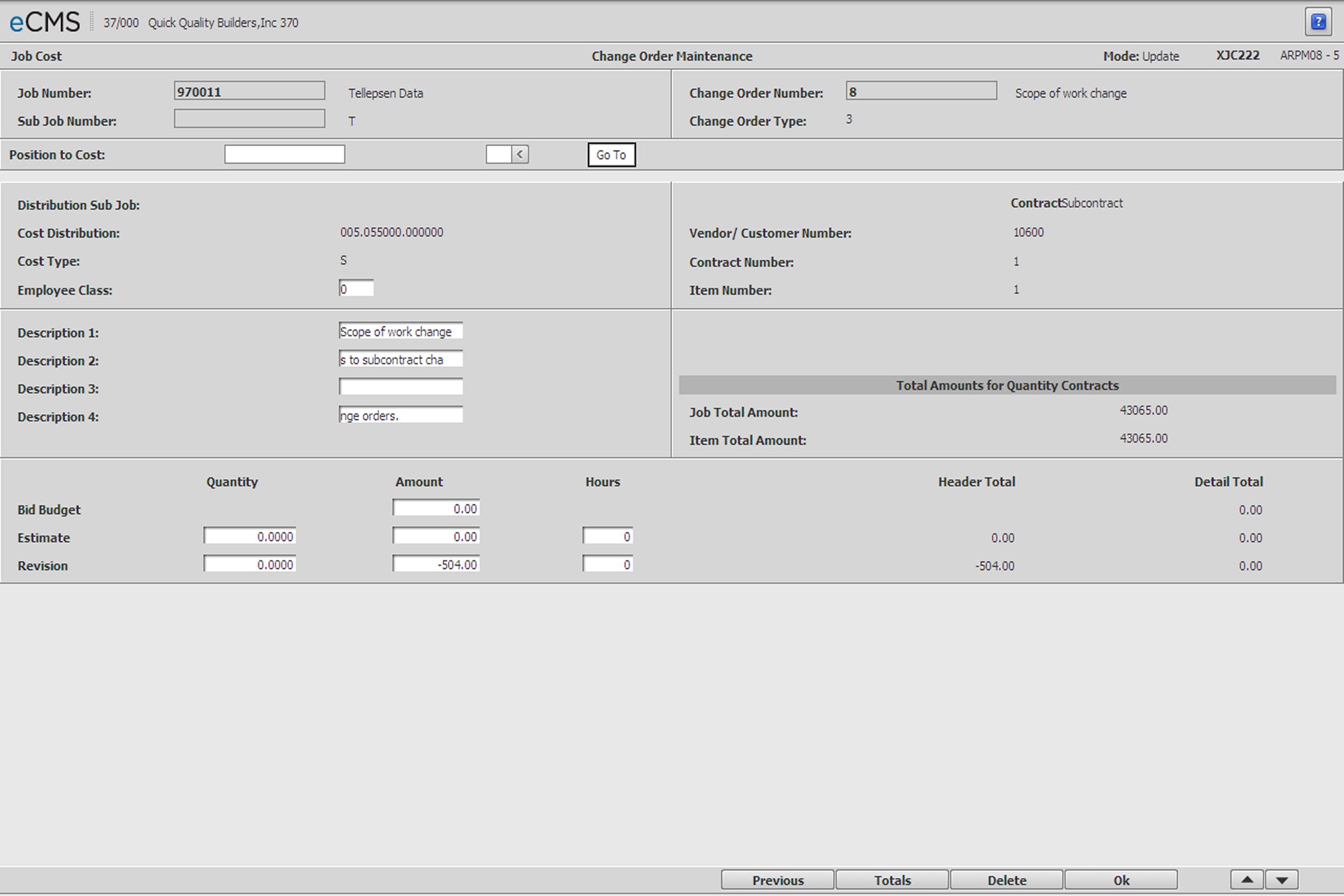
Cost Distribution
All alpha, all numeric or both alpha/numeric as defined in the company defaults.
Cost Type
Enter the cost distribution and cost type that will be affected by the change order. The cost distribution and cost type must be a valid record in the Job Cost Master file unless you are having the system automatically add the cost distribution/type to the Job Cost Master file. This is controlled by the Job Cost default, Allow Automatic Add of J/C Records During Change Order Entry Y/N.
Description 1 through 4
Enter a Description of the item, or items, covered by this Change Order. If the Job Cost default values are set to Copy Pay Item Description to Change Order records, the pay item description will automatically be pulled into the first description line of the change order. Change the description if necessary.
Vendor/Customer Number
For an Accounts Receivable Change Order, enter the Customer number of the owner or General Contractor. This number must currently be set up in the Accounts Receivable Customer Master file.
For a Accounts Payable Subcontract Change Order, enter the Vendor number of the Subcontractor. This number must currently be set up in the Accounts Payable Vendor Master file.
Contract Number
Enter the number of the contract this Change Order is adjusting.
Item Number
Enter a Contract Item Number to apply the Change Order to a specific item on the contract.
Adjustment Code
Adjustment Change Orders are Internal revisions to a budget due to a job buyout, or shifting of budget amounts. Select this option to designate this as an Adjustment Change Order
Regular Change Orders are Customer generated changes to a job. Leave this option cleared to designate this as a Regular Change Order
Update Est Cost at Compl: (ECAC)
Selecting this option will affect ECAC under the following conditions:
1 - J/C Division Default At/To Completion = At
2 - Use Reported Est. at Completion = Y
3 - There is a Non Zero field reported value as of the thru date.
If all three conditions are met, ECAC is calculated as:
Field Reported Value (As of thru date) + Sum of all change orders (Revised amounts as of the thru date) coded Update Costing = Y and Update ECAC = Y.
Total Amounts for Quantity Contracts
If this is a change order that involves quantity of items, the number will be reflected in Job Total and Item Total Amounts. Display Only.
Bid Budget
Enter the dollar amount allocated for this Bid.
Estimate
Enter the Estimates Quantity, Amount, and Hours. The entry in this Amount field will update the entry on the previous screen ("Change Order Detail").
Revision
Enter the Revisions Quantity, Amount, and Hours. The entry in this Amount field will update the entry on the previous screen ("Change Order Detail").
Header Totals
Total from Change Order Heading record. Display only.
Detail Totals
Total from all detail lines entered. Display only.
|
Click to process these entries and open another Single Line Detail screen. |
|
Click to delete this record. |
 |
Click to display the Change Order Totals screen without saving changes. |
 |
Click to return to the Change Order Header Entry screen without saving changes. |
Change Order Multi Line Detail screen
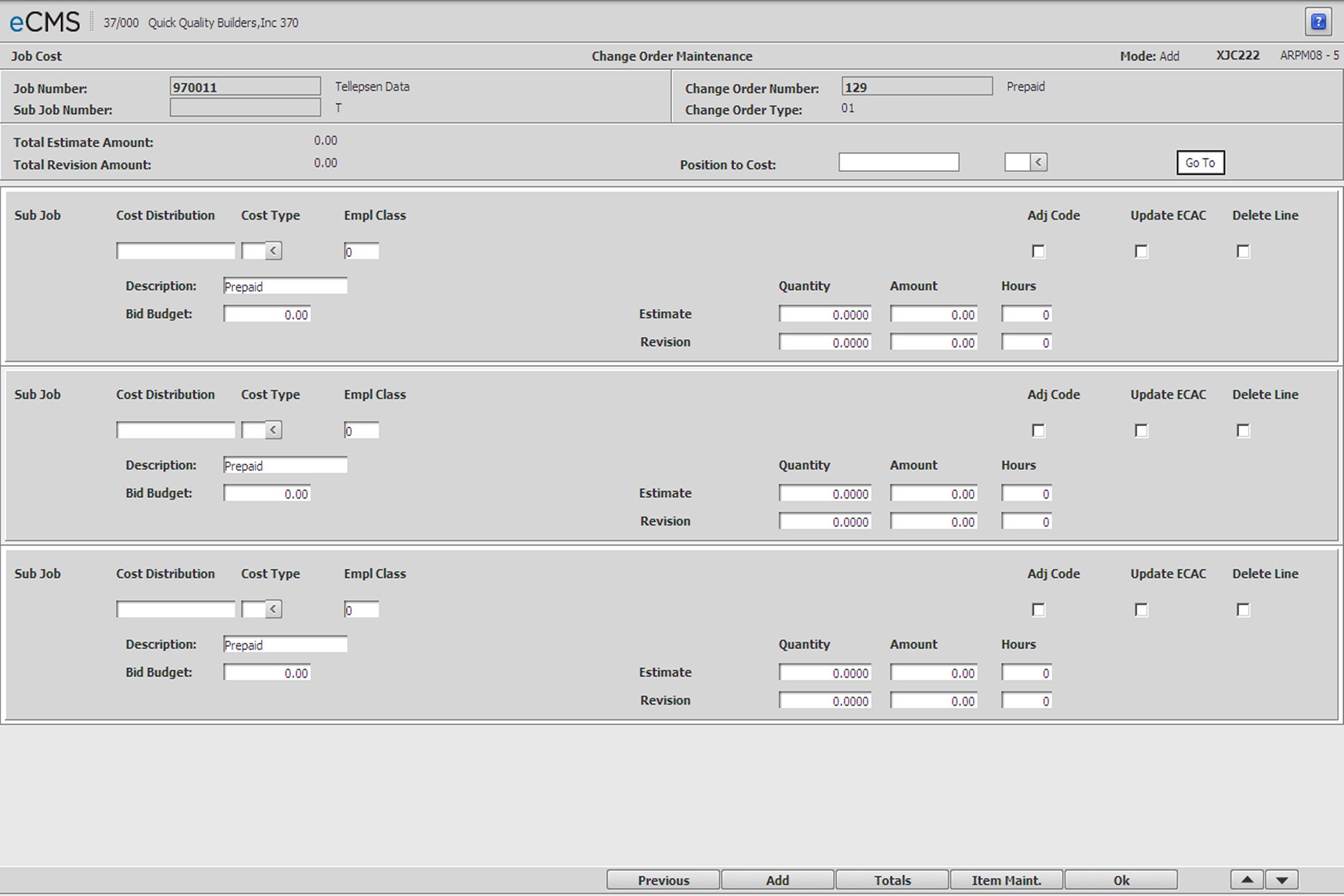
The Multi-line Detail screen accommodates dollar amounts only. For detailed information regarding the fields on this screen, see the Change Order Single Line Detail screen.
|
Click to process these entries and maintain another Detail record. |
 |
For a Record Type 1 (A/R Contract), this option will advance you to the Accounts Receivable Contract Item Maintenance Selection screen. For a Record Type 2 (A/P Subcontract), this option will advance you to the Accounts Payable Subcontract Enter/Change Subcontracts Selection screen. |
|
Click to display the Change Order Totals screen without saving changes. |
|
Click to return to the Change Order Header Entry screen without saving changes. |
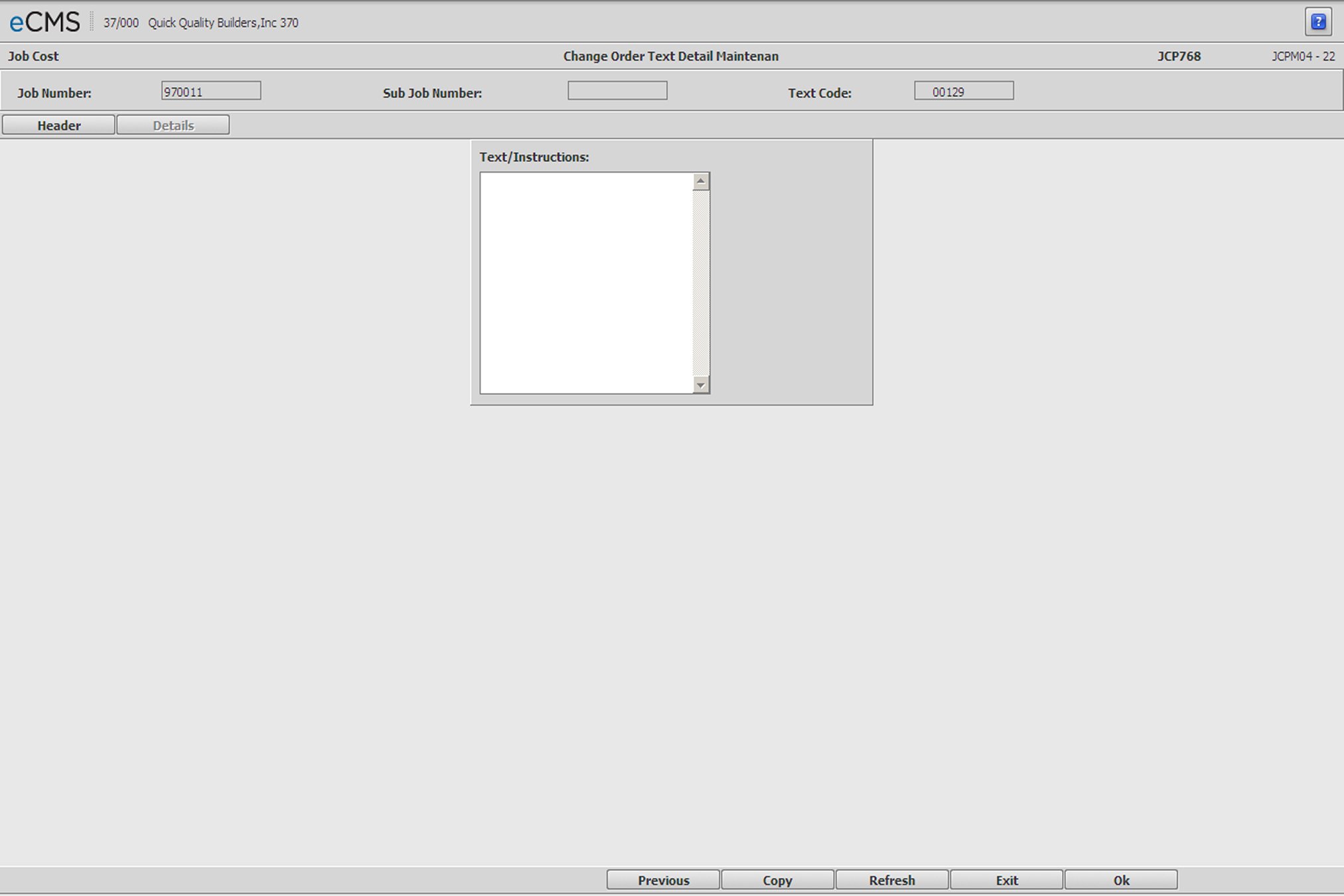
This screen displays when you click TEXT on the Change Order Header Entry screen.
Job/Sub Job
If selected to copy at the Job/Sub Job level enter the Job/Sub Job from which you want to copy the change order text.
Text Code
The new Change Order Text record will be assigned the next number available to this Change Order. This code will be permanently assigned when the record is saved by clicking OK.
Change Order Text
Enter the text to be printed on the Change Order, you can use multiple screens if needed. Change Order Text will not print unless the Print Change Order Text option on the "Change Order Detail" on page 2-214 has been selected.
|
Click to process these entries and return to the Change Order Header Entry screen. |
|
Click to return to the Main Menu without saving changes. |
 |
Add Mode: Click to erase the Change Order Text. Update Mode: Click to erase only the newly added Change Order Text. |
 |
Click to display the "Copy Change Order Text Selection", and copy Change Order Text to a new text record. This option only displays when in add mode. |
|
Click to return to the Change Order Header Entry screen without saving changes. |
Copy Change Order Text Selection screen
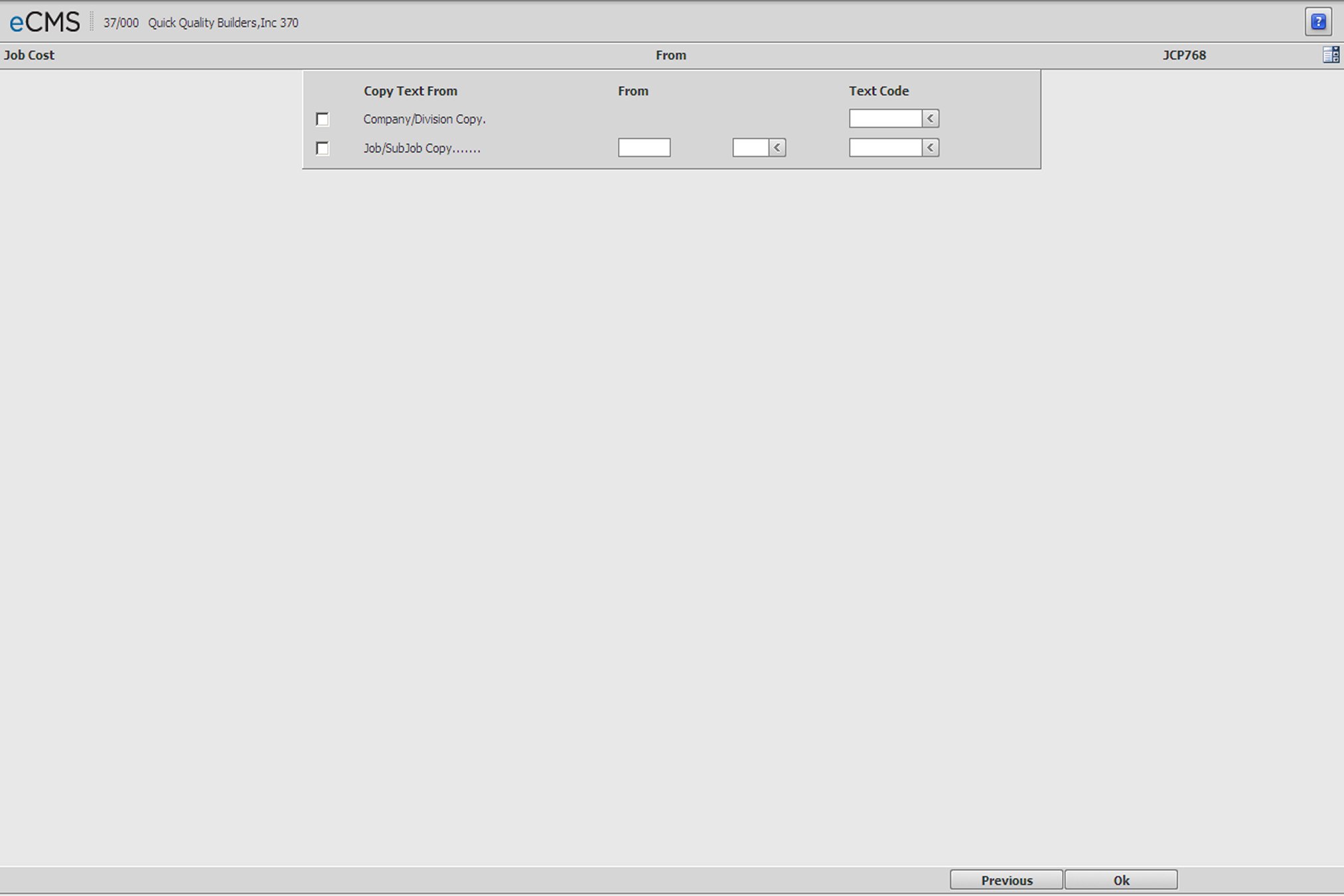
The Copy Change Order Text screen is used to copy text associated with an existing Change Order, to the current Change Order. The Change Order text being copied can be identified according to Company/Division, or Job/Sub Job.
This screen displays when you click COPY on the Change Order Text Entry screen.
Copy Text From
This option only displays in ADD mode on the Change Order Text screen. Specify the Company/Division, or the Job/Sub Job, from which the text is to be copied. These fields will default to the currently selected values.
From
Either specify a Text Code range to copy, or enter a specific Text Code.
Text Code
Enter the Text Code to copy.
|
Click to process these entries and return to the Change Order Selection screen. |
|
Click to return to the Change Order Text Entry screen without saving changes. |
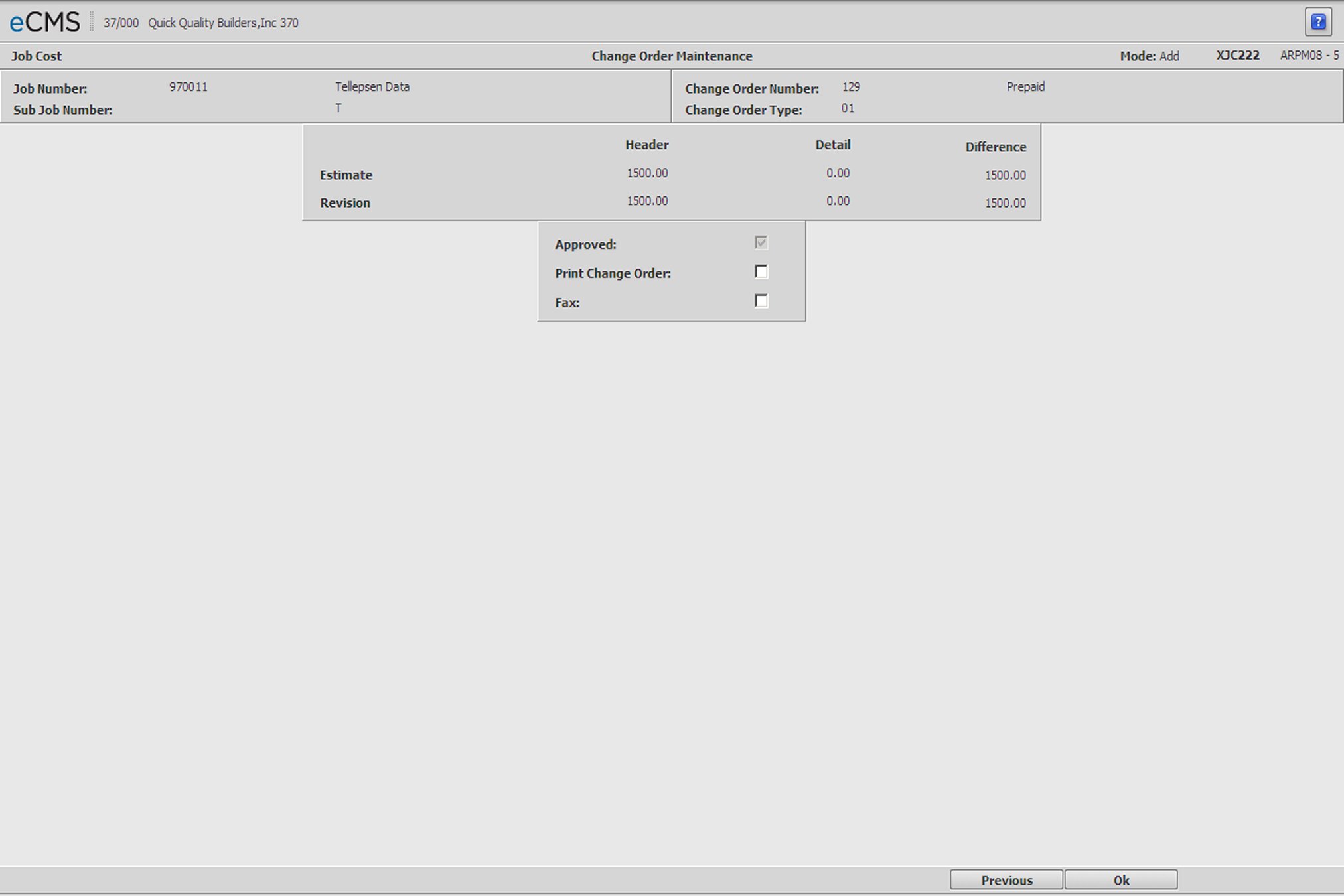
This screen displays when the TOTALS button is clicked on either the Change Order Single Line Detail screen, or the Change Order Multi Line Detail screen.
Approved
Select this option to make this record unable to be modified or deleted. This field displays only when the Job Cost Default, Protect Approved Change Orders, is set to Y.
Print Change Order
Select this option to print the Change Order using the Job Cost Change Order Processing Menu.
Fax
Select this option to fax this Change Order.
|
Click to process these entries and return to the Change Order Selection screen. |
|
Click to return to the Change Order Selection screen without saving changes. |