A Burden Allocation record is used for allocating direct labor burden and can use a Percentage rather than the Actual Burden cost. This record can be set up by Job or Department.
Tip: We recommend that you take print screens before you delete records.
Payroll Default Values
In the Payroll Default Values, enter the burdens to be allocated by the Actual or Percentage method.
Note: If a type of burden (FICA, FUTA, etc.) is to be posted by the Actual method, and a record is set up in this file, both will be posted.
If the Percentage method is used, the Actual Burden is posted to the General Ledger expense (debit) accounts in the Burden Allocation, Department Master or Payroll Distribution Files.
Actual Burden General Ledger
The Actual Burden General Ledger accounts in the Burden Allocation file can be used to post Actual Burden to designated accrual General Ledger accounts by Department, Job/Sub Job, or Type of Job. Segregating the accounts in this fashion will allow a comparison of the amount of Actual Burden to the Percentage Burden charged to the Job.
General Ledger Distribution
The calculated Percentage Burden is posted to the General Ledger accounts set up in the Burden Allocation file.
With the exception of a G/L only, or Department Burden, the debit account must be a work-in-process account (Application code = Job Cost). The credit account will be the allocation account used to offset the accounts to which the actual burden is posted.
Job Cost Distribution
Using Burden Allocation records, burden is charged to job cost accounts according to the method specified by the Burden Distribution Code selected on page 3 of the Payroll Default Values.
Admin | Application Installation | Setup Default Values - Payroll option
The following table provides descriptions of the Burden Distribution Code field options:
Code |
Description |
0 |
Only prints the report and does not post burden to job cost or General Ledger files. |
1 |
Applies burden to the same activity and General Ledger account as the employee. Override General Ledger accounts and job cost distributions can be entered in this file. |
2 |
Applies burden to standard distributions entered in this file for Job Cost and General Ledger. |
3 |
Only posts burden to the General Ledger. This method may not be used with percentage burden. |
4 |
Applies burden to the same cost distribution as the employee, but uses the standard General Ledger accounts from this file. |
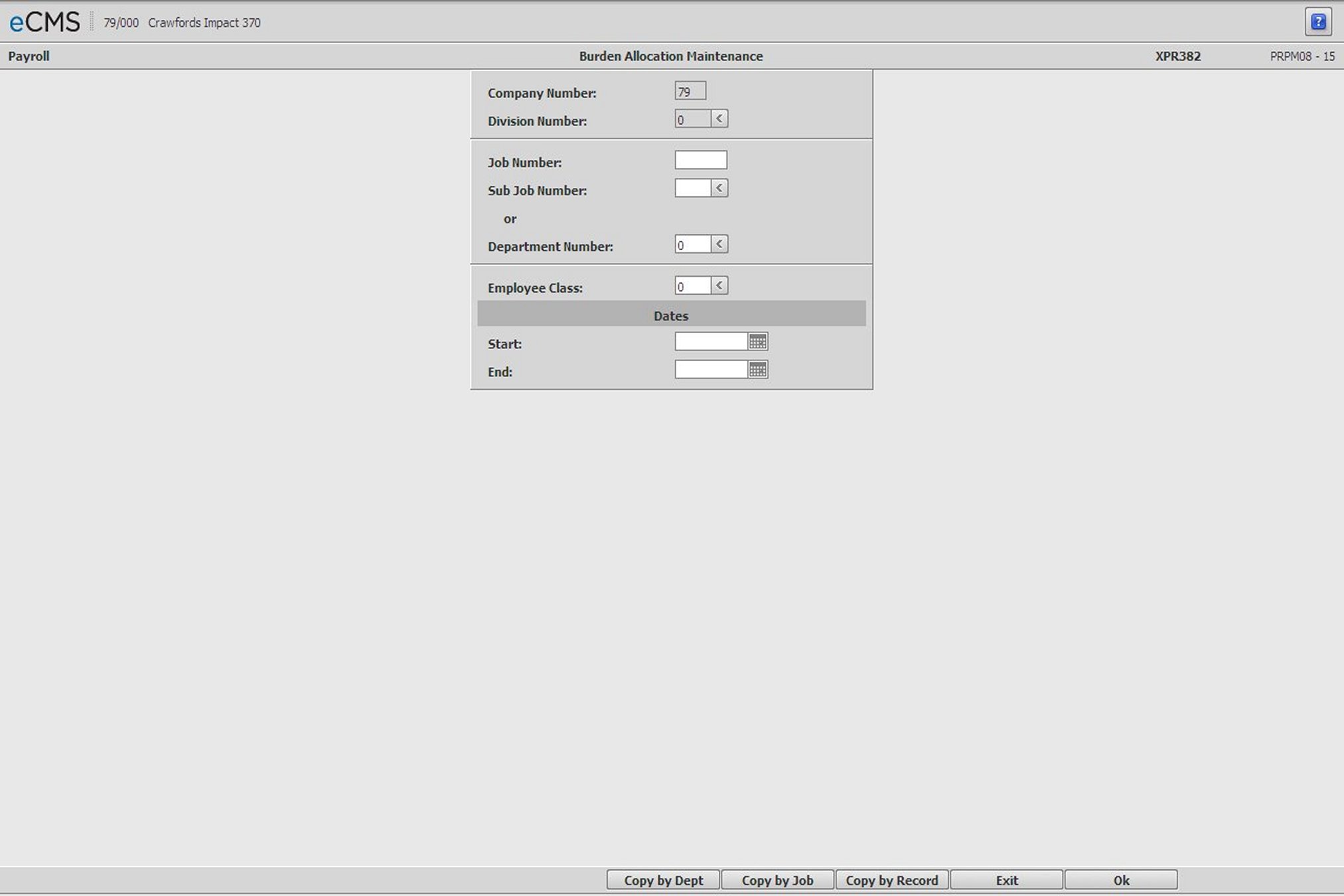
Burden Allocation Selection screen
Company/Division Number
Accept the Company/Division used at login, or click the Division Number prompt to make new selections from a list.
Job/Sub Job Number
Enter a current Job/Sub Job number, or click the Sub Job prompt to make these selections from a list. The Job/Sub Job number entered must currently be set up in the Job Description Master.
A generic burden allocation record using job # 999999 999 can be set up to apply burden to all jobs which are not individually set up in this file.
Note: A burden allocation record for Job/Sub 999999 999 is not considered as a burden allocation record for controlling burden posting in the payroll default values.
-or-
Department Number
Enter a valid Department number. If the burden type on the next screen is Job Cost (Direct Labor), then all the jobs that are assigned this department in the Job Description and do not have an assigned burden allocation record will use this record.
If the burden type on the next screen is Department (Indirect Labor), then this record is used to calculate burden for all employees assigned to this department in the Employee Master file.
Employee Class
Enter an Employee Class to set up a Burden Allocation record that applies only to a specific employee class code. Review the Employee Class file Maintenance for further information.
Start Date
Enter the date (MM/DD/YYYY) the Burden Allocation method went into effect.
End Date
Enter the date (MM/DD/YYYY) the Burden Allocation method ended.
 |
Click to process these entries and display the Burden Allocation Detail screen. |
 |
Click to return to the Main Menu without saving changes. |
 |
Click to copy Burden Allocation method by individual record using the Copy Burden Allocation Method by Record screen. |
 |
Click to copy Burden Allocation method by jobs using the Copy Burden Allocation Method by Job screen. |
 |
Click to copy Burden Allocation method by jobs using the Copy Burden Allocation Method by Department screen. |
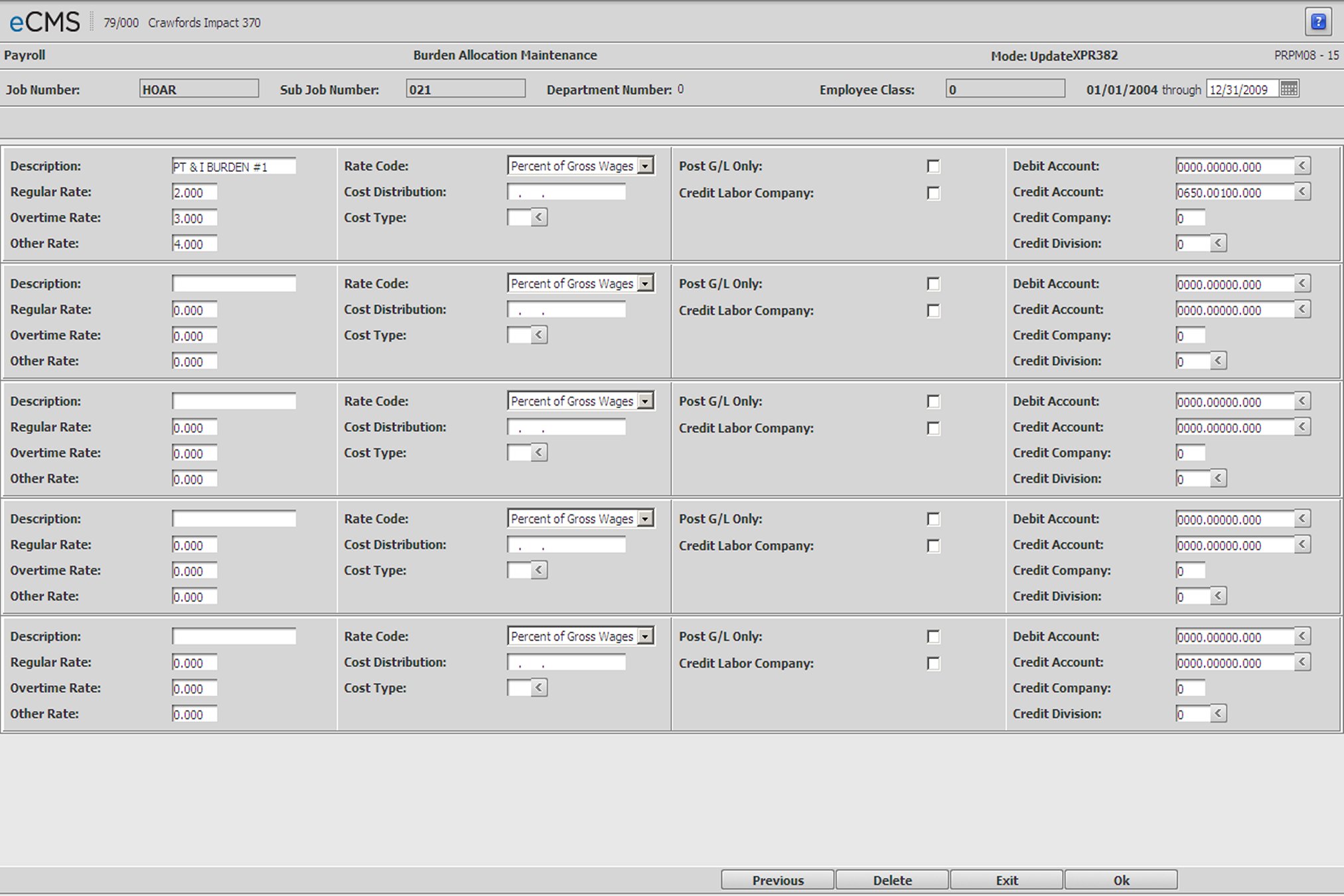
Burden Allocation Detail screen
Department Burden Type
This field displays only if a Department Number was entered on the Burden Allocation Selection screen.
Click the prompt and select a Burden Allocation Type, Job Cost (Direct Labor) or Department (Indirect Labor), from the drop-down list.
Through
Enter a new through date, if necessary. If the date entered conflicts with existing records, an error message will be generated.
Description
Enter a description for each type of Labor Burden.
Note: Burden set up in the Payroll Defaults will be posted with Burden setup during this procedure.
Rates
These fields are 6 characters in length. They will accept a decimal point and up to 5 digits, 3 of which are decimal places.
Regular Rate
Based on Regular Gross Hours. Enter the percentage, or rate per hour, of labor to accrue for each burden type.
Overtime Rate
Based on overtime gross hours. Enter the percentage, or rate per hour, of labor you want to accrue for each burden type.
Other Rate
Based on other gross hours. Enter the percentage, or rate per hour, of labor you want to accrue for each burden type.
Rate Code
Click the prompt and select one of the following codes to indicate the manner in which each burden is to be calculated:
Percent of Gross Wages
Dollar per Hour
Cost Distribution
All alpha, all numeric, or both alpha/numeric as defined in the company defaults.
Cost Type
Enter an override cost distribution type to allocate burden to a different cost distribution than would normally be used by the burden allocation method selected in the Payroll Defaults. This overrides all burden methods. Cost Types are set up in:
Job Cost | Maintenance | Job Cost Set Up - Cost Type option
Post to G/L Only
Select this option to post the Burden Allocation to the General Ledger only, and not to the Job/Sub Job.
Clear this option to post the Burden Allocation to the Job/Sub Job as well as the General Ledger.
Credit Labor Company and Company/Division
1. If the Payroll default, Vendor Payroll, is set to Y and:
a. If the Credit Labor Company option is selected, then this burden will not calculate.
b. If the Credit Labor Company option is not selected, and the Credit Company/ Division is BLANK, then the credit will go to the source Company/Division. If the distribution Company/Division is different, then intercompany transactions will be created between the source company and distribution company.
c. If the Credit Labor Company option is not selected, and the Credit Company/Division IS NOT BLANK, then the credit will go to the credit Company/Division as setup, and an intercompany transaction will be created between the payroll source Company/Division if different than the credit Company/Division.
Note: If the distribution Company/Division is different from the source Company/Division, then an intercompany transaction between the source Company/Division and the distribution Company/Division is also created.
2. If the Payroll default, Vendor Payroll, is set to N:
a. If the Credit Labor Company option is selected, then the credit will post to the source Company/ Division, and if the distribution Company/Division does not equal the source Company/Division, then normal intercompany transactions will be created.
b. If the Credit Labor Company option is not selected, and the Credit Company/Division is BLANK, then the credit will go to the source Company/Division. If the distribution Company/Division is different, then intercompany transactions will be created between the source company and distribution company.
c. If the Credit Labor Company option is not selected, and the Credit Company/Division IS NOT BLANK, then the credit will go to the credit Company/Division as setup, and an intercompany transaction will be created between the source Company/Division if different than the credit Company/Division and if the distribution Company/Division is different than an intercompany transaction between the source Company/Division and the distribution Company/Division is also created.
Debit Account
Required for Burden Allocation methods 2 or 4 (Job record) and also required for Department record.
If Burden Allocation methods 2 or 4 are used, an override General Ledger debit account must be entered that has a Job Cost Application Code.
However, to post to the General Ledger only, the accounts Application Code must be set to General Ledger.
Enter these accounts manually, or click the prompt to select from a list.
Credit Account (Required)
Enter the General Ledger credit accounts to be used for posting burden accruals, or click the prompt to select from a list. The accounts selected must have their Application Codes set to General Ledger.
These accounts are off set against the General Ledger debit accounts which were used to post the actual labor burden.
The actual burden accounts are entered in this record, the Master Distribution file, or the Department Master file.
Credit Company/Division
Enter Co/Div for Credit Account.
|
Click to process these entries and open another Burden Allocation Detail screen. When finished, click OK to access the Actual Burden G/L Number Entry screen. |
|
Click to return to the Main Menu without saving changes. |
 |
Click to return to the Burden Allocation Selection screen without saving changes. |
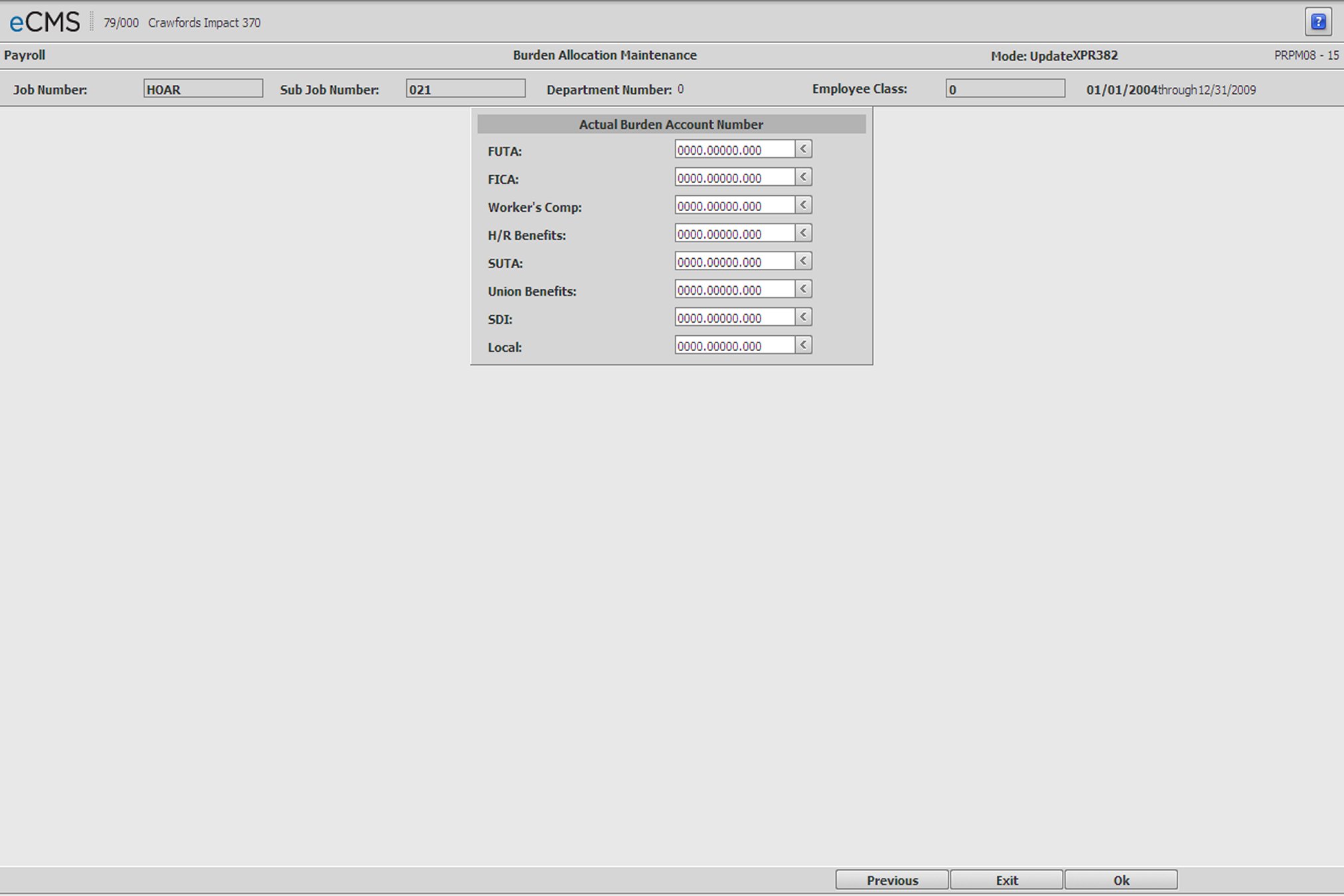
Actual Burden G/L Number Entry screen
Actual Burden G/L Numbers
Enter General Ledger accounts (application code of 0) to override the posting of actual burden in General Ledger from accounts in the Department Master file or Payroll Distribution file. These accounts must be entered for Department burdens, but are optional for Job Cost burdens.
|
Click to process these entries and return to the Burden Allocation Selection screen. |
|
Click to return to the Main Menu without saving changes. |
|
Click to return to the Burden Allocation Detail screen without saving changes. |
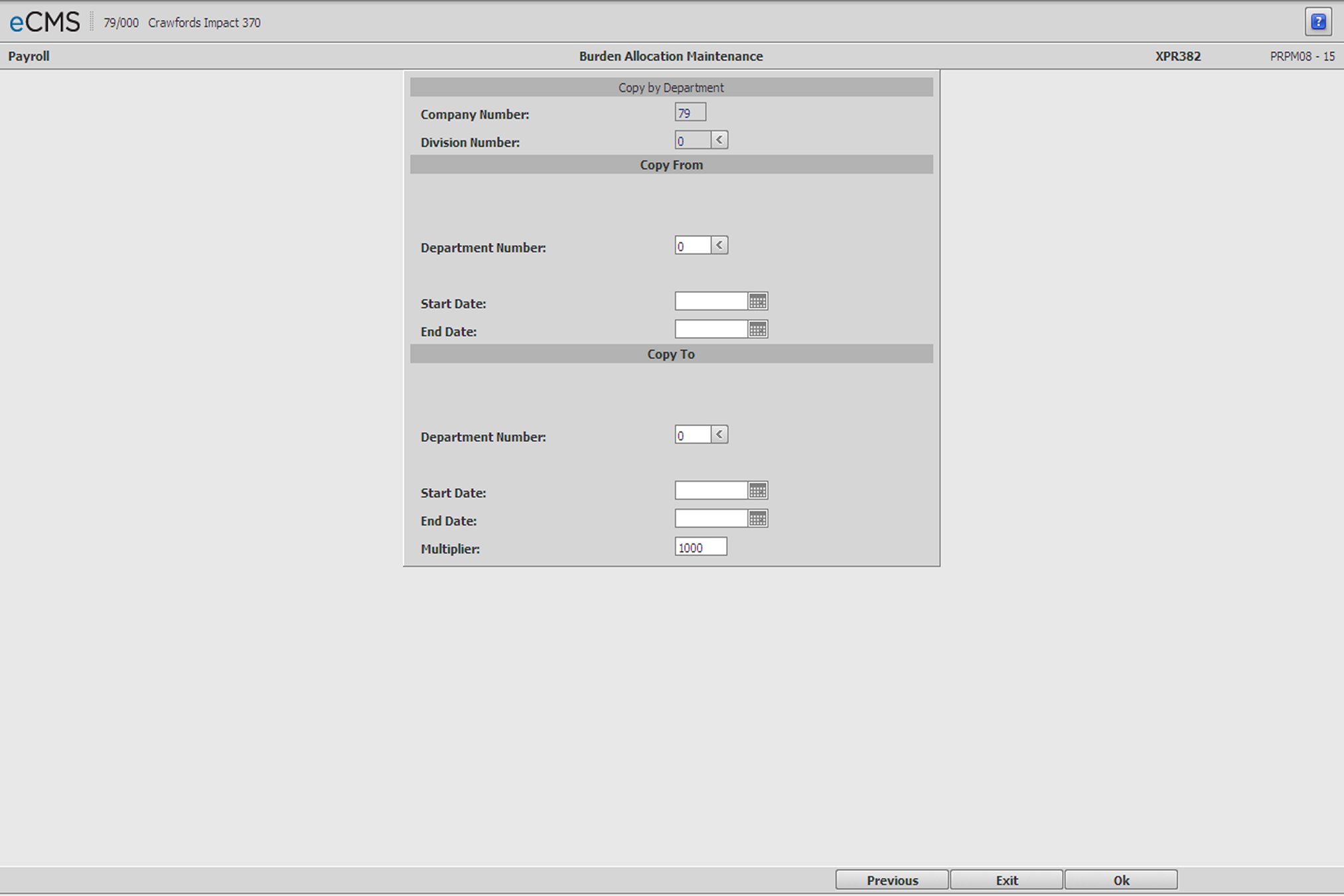
Copy Burden Allocation Method by Department screen
Company/Division Number
Accept the current Company/Division, or click the Division Number prompt to make new selections from a list.
Copy From
Department
Enter the number of the Department whose Burden Allocation methods are to be copied, or click the prompt to select from a list.
Start Date
Enter the date (MM/DD/YYYY) the Burden Allocation method went into effect, or click the icon to select from a calendar.
Completion Date
Enter the date (MM/DD/YYYY) the Burden Allocation method ended, or click the icon to select from a calendar.
Copy To
Department
Enter the number of the Department to which the Burden Allocation information is to be copied, or click the prompt to select from a list.
Start Date
Enter the date (MM/DD/YYYY) the Burden Allocation method went into effect, or click the icon to select from a calendar.
Completion Date
Enter the date (MM/DD/YYYY) the Burden Allocation method ended, or click the icon to select from a calendar.
Multiplier
Enter the multiplier for this record. The value entered will either increase, or decrease, the hourly pay rate being copied.
For example, if the new pay rate is to be:
Increased by 8%, then enter 1.080
Decreased by 8%, then enter .920
A new rate can be entered, or the rates can be changed after coping the records.
|
Click to process these entries and return to the Burden Allocation Selection screen. |
|
Click to return to the Main Menu without saving changes. |
|
Click to return to the Burden Allocation Selection screen without saving changes. |
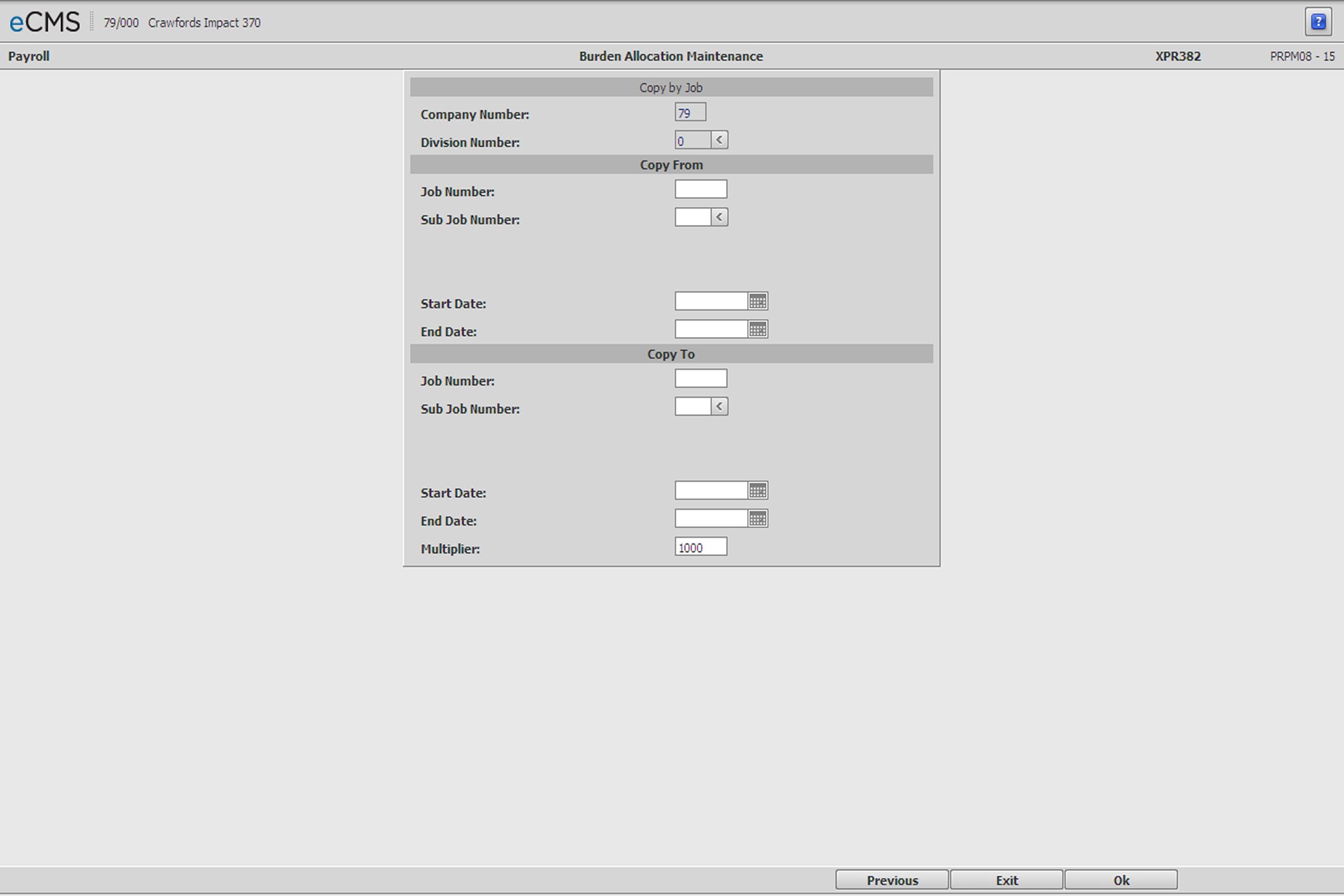
Copy Burden Allocation Method by Job screen
Company/Division Number
Accept the current Company/Division, or click the Division Number prompt to make new selections from a list.
Copy From
Job/Sub Job
Enter the Job/Sub Job whose Burden Allocation methods are to be copied. Click the Sub Job prompt to select from a list.
Start Date
Enter the date (MM/DD/YYYY) the Burden Allocation method went into effect, or click the icon to select from a calendar.
Completion Date
Enter the date (MM/DD/YYYY) the Burden Allocation method ended, or click the icon to select from a list.
Copy To
Job/Sub Job
Enter the Job/Sub Job to which the Burden Allocation information is to be copied, or click the prompt to select from a list.
Start Date
Enter the date (MM/DD/YYYY) the burden allocation method went into effect, or click the icon to select from a calendar.
Completion Date
Enter the date (MM/DD/YYYY) the burden allocation method ended, or click the icon to select from a calendar.
Multiplier
Enter the multiplier for this record. The value entered will either increase, or decrease, the hourly pay rate being copied.
For example, if the new pay rate is to be:
Increased by 8%, then enter 1.080
Decreased by 8%, then enter .920
A new rate can be entered, or the rates can be changed after copying the records.
|
Click to process these entries and return to the Burden Allocation Selection screen. |
|
Click to return to the Main Menu without saving changes. |
|
Click to return to the Burden Allocation Selection screen without saving changes. |
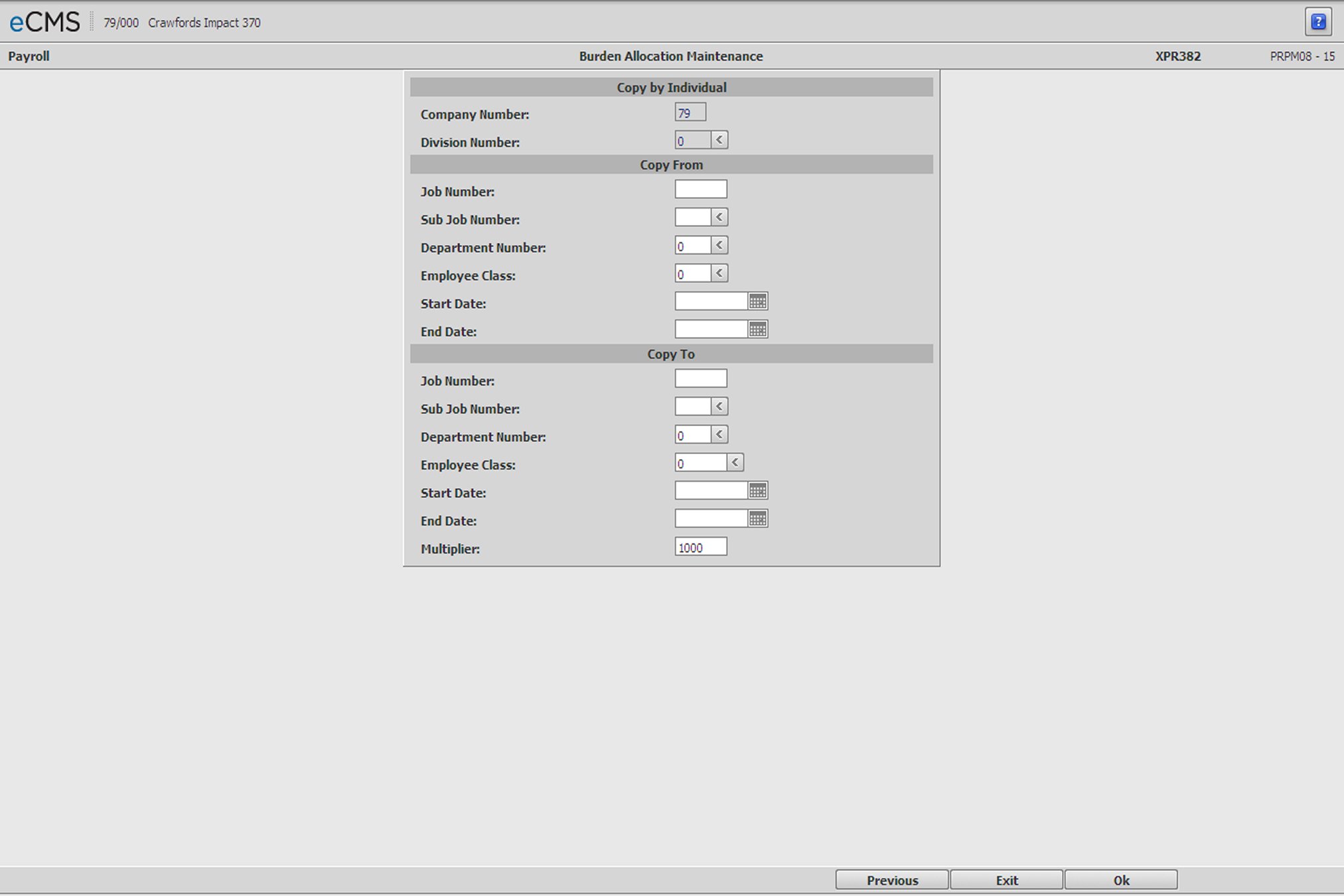
Copy Burden Allocation Method by Individual Record screen
Company/Division Number
Accept the current Company/Division, or click the Division Number prompt to make new selections from a list.
Copy From
Job/Sub Job
Enter the Job/Sub Job whose Burden Allocation methods are to be copied. Click the Sub Job prompt to select from a list.
Department
Enter the number of the Department whose Burden Allocation methods are to be copied, or click the prompt to select from a list.
Class
Enter the Employee Class whose Burden Allocation methods are to be copied, or click the prompt to select from a list.
Start Date
Enter the date (MM/DD/YYYY) the Burden Allocation method went into effect, or click the icon to select from a calendar.
Completion Date
Enter the date (MM/DD/YYYY) the Burden Allocation method ended, or click the icon to select from a calendar.
Copy To
Job/Sub Job
Enter the Job/Sub Job to which the Burden Allocation information is to be copied, or click the prompt to select from a list.
Department
Enter the number of the Department to which the Burden Allocation information is to be copied, or click the prompt to select from a list.
Class
Enter the Employee Class to which the Burden Allocation information is to be copied, or click the prompt to select from a list.
Start Date
Enter the date (MM/DD/YYYY) the Burden Allocation method went into effect, or click the icon to select from a calendar.
Completion Date
Enter the date (MM/DD/YYYY) the Burden Allocation method ended, or click the icon to select from a calendar.
Multiplier
Enter the multiplier for this record. This value will either increase or decrease the hourly pay rate being copied.
For example, if the new pay rate is to be:
Increased by 8%, then enter 1.080
Decreased by 8%, then enter .920
Rates can be changed manually after they have been copied, or records using new rates can be entered.
|
Click to process these entries and return to the Burden Allocation Selection screen. |
|
Click to return to the Main Menu without saving changes. |
|
Click to return to the Burden Allocation Selection screen without saving changes. |