Use this menu option to re-issue a check with a new check number, without re-entering data. The original check number is voided; and an Audit Report is generated that lists both original check and re-issued check information.
Note: The Check Reprint process can be run during payroll processing, however it must be run prior to running the Payroll Register.
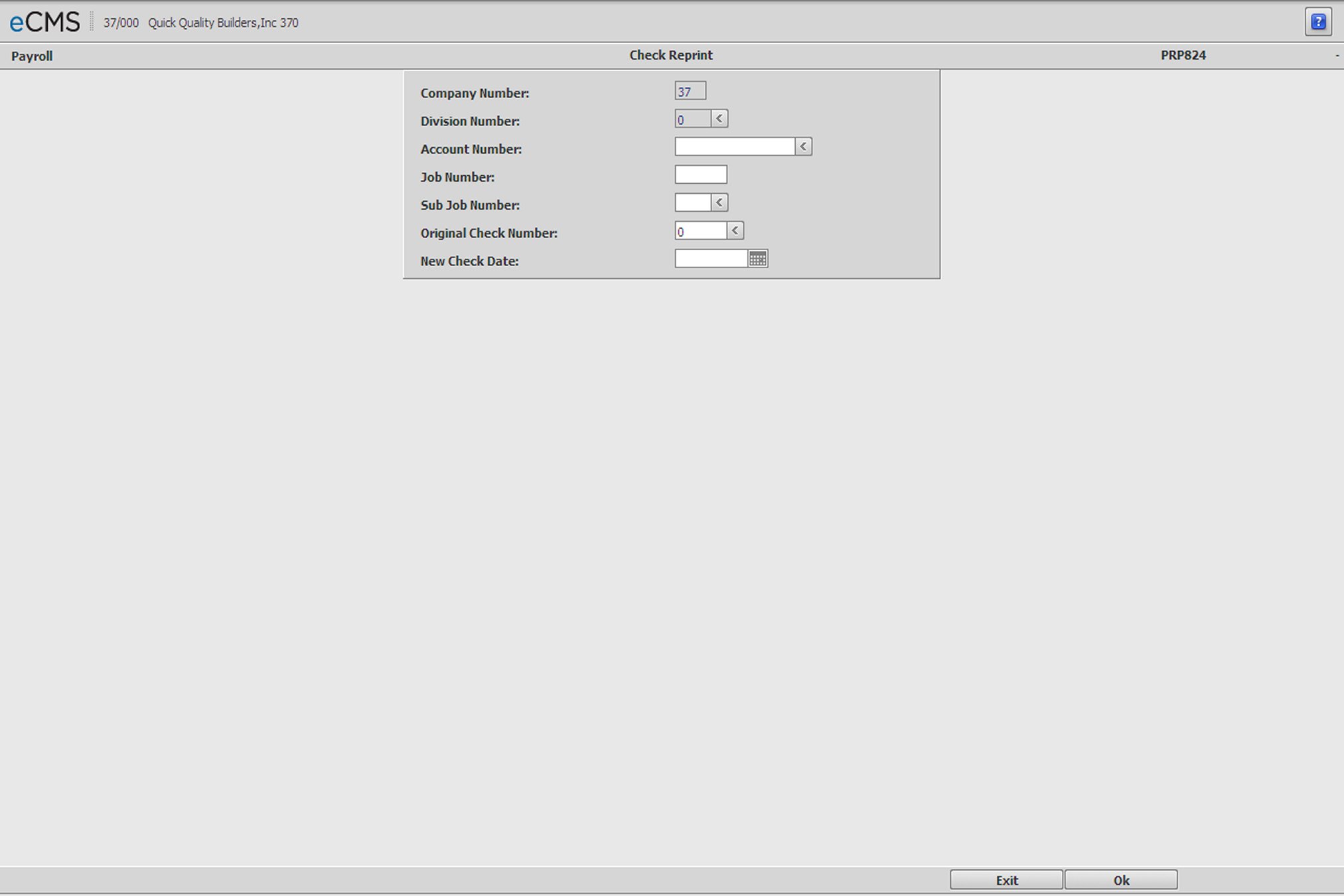
Check Reprint Selection screen
Company Number/Division Number
Accept the Company/Division used at login, or click the Division Number prompt to selection from a list.
Account Number
Enter the Bank General Ledger Account number of the original check, or click the prompt to select from a current list.
Job/Sub Job Number
Enter the Job/Sub Job associated with the original check, or click the prompt to select from a current list. Leave these fields blank if the original check was not associated with a job/Sub Job.
Original Check Number
Enter the number of the original check, or click the prompt to select from a current list.
New Check Date
Enter the date you would like to use for this check. If you leave this field blank, the system uses the original check date.
 |
Click to validate the new check number, print the check and generate an audit report listing the check number, the check date, and the check amount of both the original check and the re-issued check. Remember, the original check number will be voided and unavailable for re-use. Changes are saved and the Selection screen displays again so that you can reprint another check. |
 |
Click to return to the Main Menu without saving changes. |
