This menu option is used to add, update or delete outstanding payroll checks. When first converting to eCMS, use this option to enter outstanding payroll checks into the Payroll Check Reconciliation file.
Note: Do not use this option to add handwritten payroll checks to the Payroll Check Reconciliation file. The employee YTD federal and state and local earnings and employee history files will not be updated. Handwritten checks must be entered through the payroll entry option as manual (payoff) checks.
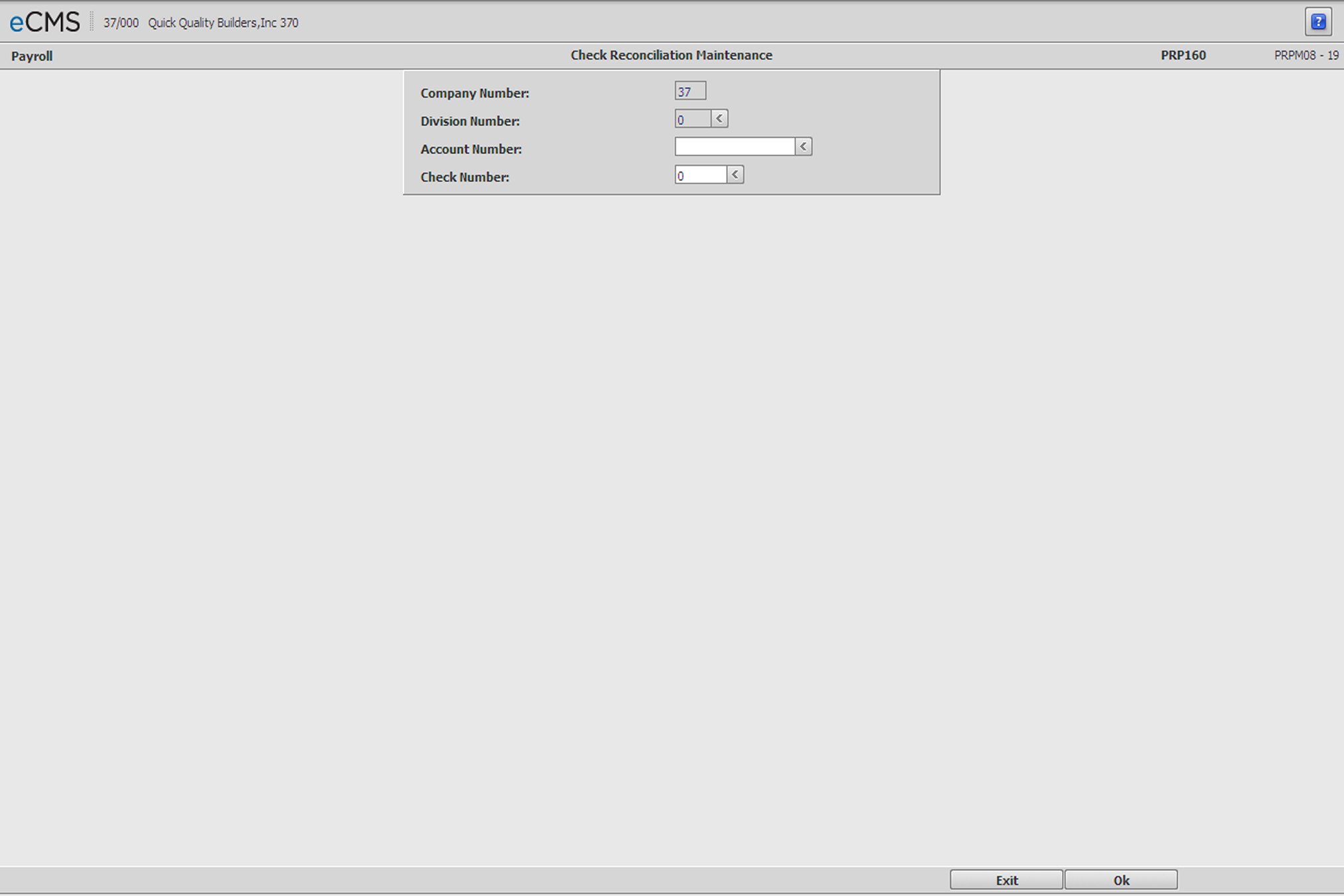
Check Reconciliation Selection screen
Company/Division Number
Accept the current Company/Division, or click the Division Number prompt to make new selections from a list.
Account Number
Enter the General Ledger account number for the bank on which the check was, or will be, drawn. Click the prompt to select from a list.
Check Number
Enter a Check Number to create or modify, or click the prompt to select from a list.
 |
Click to process these entries and return to the Check Reconciliation Detail screen. |
 |
Click to return to the Main Menu without saving changes. |
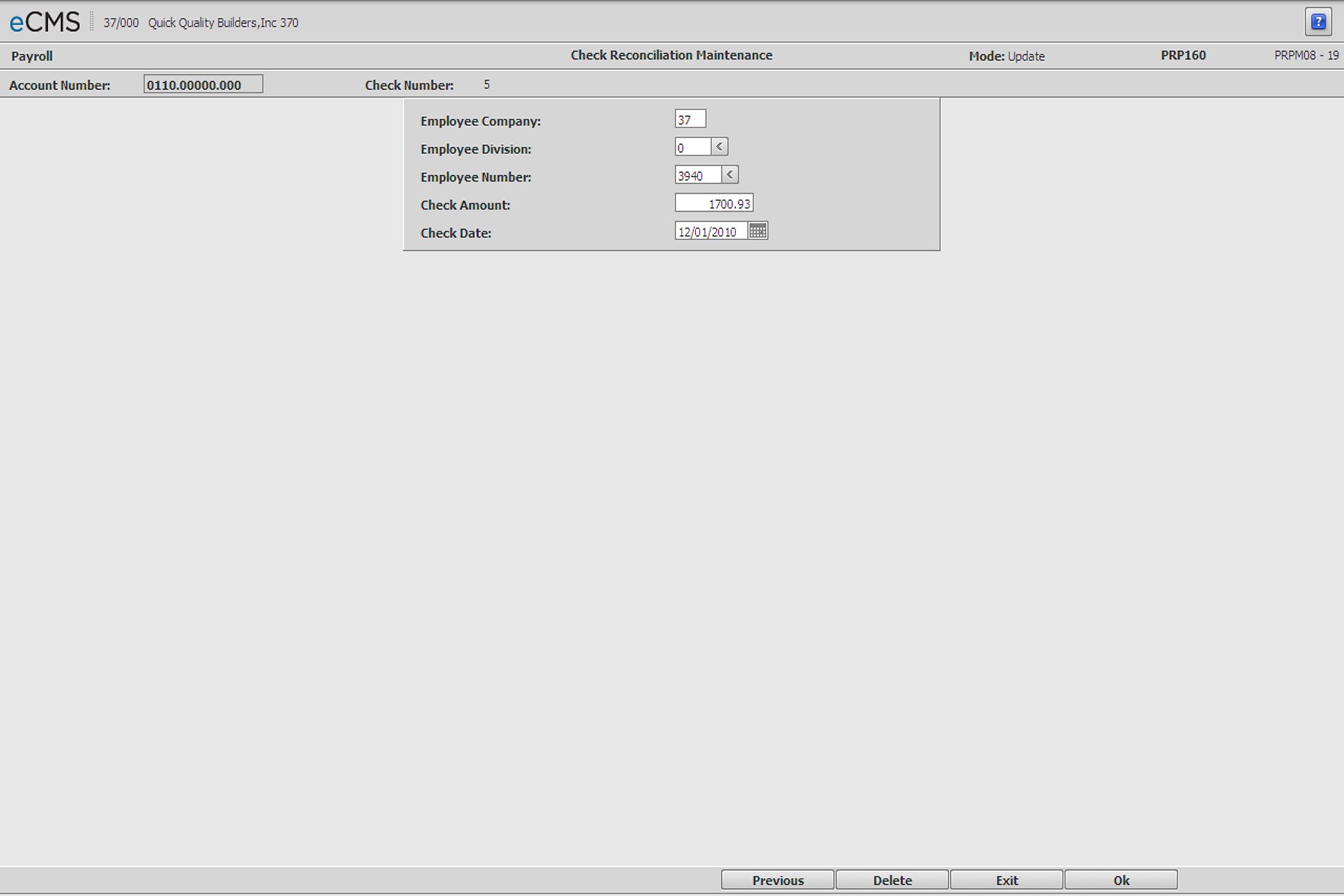
Check Reconciliation Detail screen
Employee Number
Enter the number of the Employee to whom the payroll check was written, or click the prompt to select from a list.
Check Amount
Enter the net amount of the payroll check. This field is 12 characters in length. It will accept a decimal point and up to 10 digits, 2 of which are decimal places.
Check Date
Enter the date of the check.
|
Click to process these entries and return to the Check Reconciliation Selection screen. |
|
Click to return to the Main Menu without saving changes. |
 |
Click to return to the Check Reconciliation Selection screen without saving changes. |