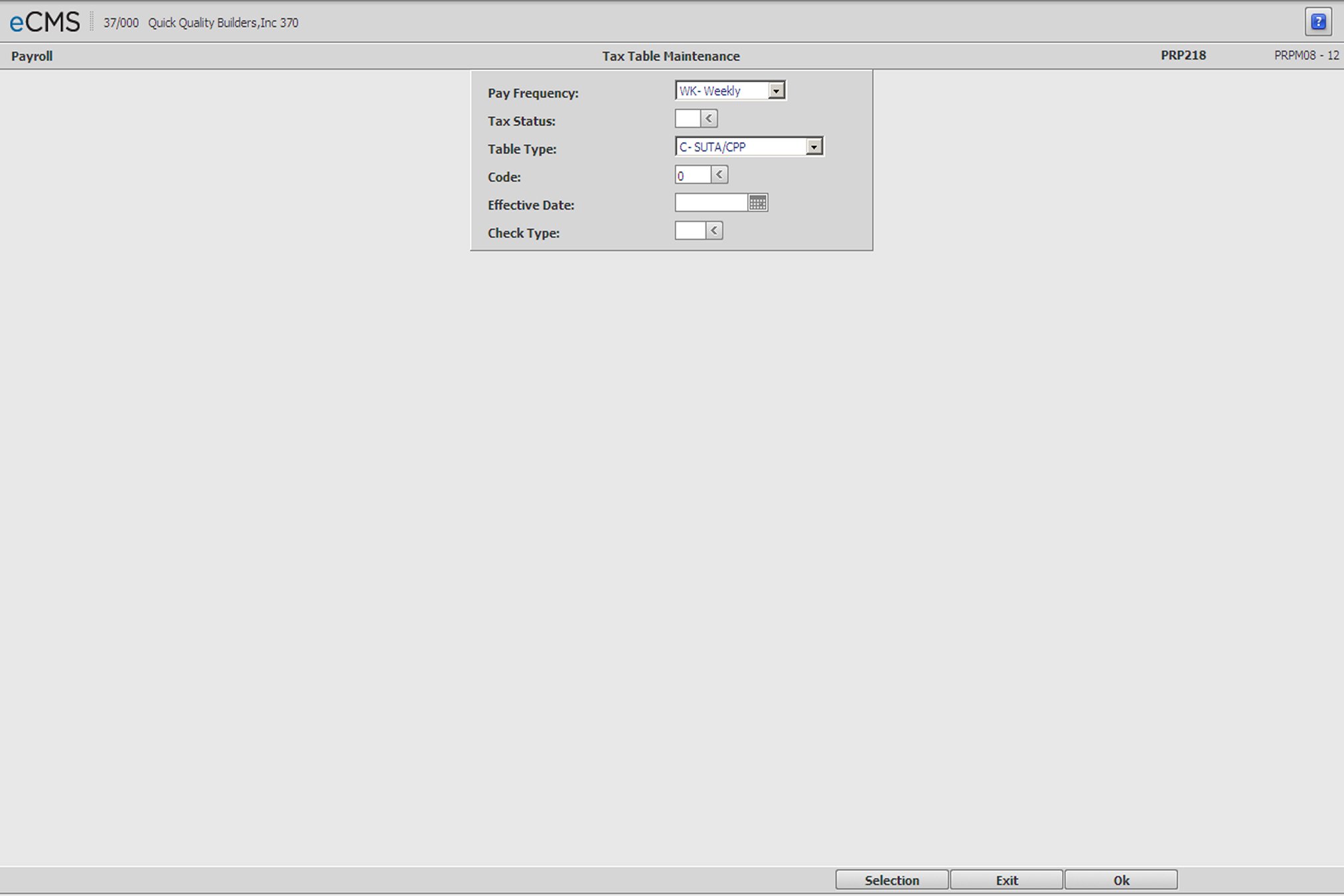
Employee Tax Table Selection screen
Pay Frequency
Click the prompt and select one of the following, from the drop-down list, to indicate the Payroll Frequency for this table.
WK |
Weekly |
BW |
Bi-Weekly |
SM |
Semi-Monthly |
MN |
Monthly |
AN |
Annual |
Tax Status
Enter the Tax Status code for this table, or click the prompt to select from a list. This code is usually M for Married or S for Single. However, tax law changes by some states have created Head of household tables, Married with both spouses working tables, Married filing separately tables, etc.
Use any alphabetic code for these tables except N. N is reserved to indicate that a tax table is not required, i.e. the tax is based on a percentage, or fixed amount.
Table Type
Click the prompt and select one of the following, from the drop-down list, to indicate the type of Taxing Entity to be used.
|
|
|
|
|
|
|
|
|
State
Enter a valid code for this State or Local taxing authority, or click the prompt to select from a list. Refer to the State and Territory Numbers and Abbreviations List for state, SDI/Local and SUTA tax tables.
Effective Date
Enter the date this Tax Table will take effect.
Check Type
Enter the check type, or click the prompt to select from a list. The check type entered must be set up in the Check Type Description file. For information about creating and defining check types, see Check Type Description.
Leave the Check Type field blank when setting up default tax tables used by all check types. A Check Type should only be designated when it will reference a tax table with different tax rates than the default tax tables (such as a Bonus Check).
 |
Click to process these entries and display the Employee Tax Table Detail - Amount and Percentage screen. |
 |
Click to return to the Main Menu without saving changes. |
 |
Click to return to the Employee/Employer Tax Table Selection screen without saving changes. |